How I do Time Block With AI

Time blocking works great until about 10:40 on a Tuesday. Then a "quick call" eats your deep-work block, three tasks slide to nowhere, and your calendar turns into a museum of good intentions. 🫠
AI fixes the part that usually kills time blocking: rebuilding the plan after reality hits it. It doesn't fix the rest. You still decide what matters. This guide shows you how to split the work between you and the machine, step by step, plus which apps are worth paying for.
The short answer: what is AI time blocking?
AI time blocking means you list your tasks with rough durations and priorities, and an AI tool places them into open slots on your calendar, then moves them when meetings or overruns knock things out of place.
Here's the longer version:
- You decide: what's important this week, your fixed commitments, and your working hours.
- The AI decides: where each task fits, how to split big tasks across days, and what to bump when something runs over.
- Best tools: Motion and Reclaim for hands-off auto-scheduling, Akiflow if you want to approve each block, and Saner.ai if your tasks start life as messy notes, emails, and voice dumps.
- Cheapest way to start: Reclaim's free Lite plan or Saner.ai's free plan, layered on the Google Calendar you already use.
What should the AI do, and what should you keep?
| Job | Who should do it | Why |
|---|---|---|
| Pick the 1–3 things that matter this week | You | AI can't know your boss is cranky about the Q4 deck |
| Estimate rough durations | You, then pad them | AI has no idea how slow you are at slides |
| Find open slots around meetings | AI | Pure calendar math |
| Split a 6-hour project into chunks | AI | Tedious, rule-based |
| Reshuffle after a meeting runs over | AI | This is where manual time blocking dies |
| Decide what to drop when the week overflows | You, with AI suggestions | Trade-offs need judgment |
| Protect lunch, workouts, and pickups | You set the rule, AI enforces it | Set once, defended forever |
How do you set up AI time blocking?
Step 1: Connect every calendar you actually live in

Work calendar, personal calendar, the shared family one with the dentist appointments. If the AI can't see an event, it'll happily schedule deep work on top of it. Most tools in this guide support Google Calendar and Outlook; check yours before paying.
Step 2: Set working hours and "no-fly" zones
Tell the tool when it's allowed to schedule tasks. Be honest. If you never do focused work after 4 p.m., don't give it 4–6 p.m.
Add recurring protected blocks for:
- Lunch (yes, really)
- Exercise or a walk
- School pickup, commute, or anything with a hard stop
- A daily 15-minute "buffer" in the afternoon
Step 3: Define two or three block types
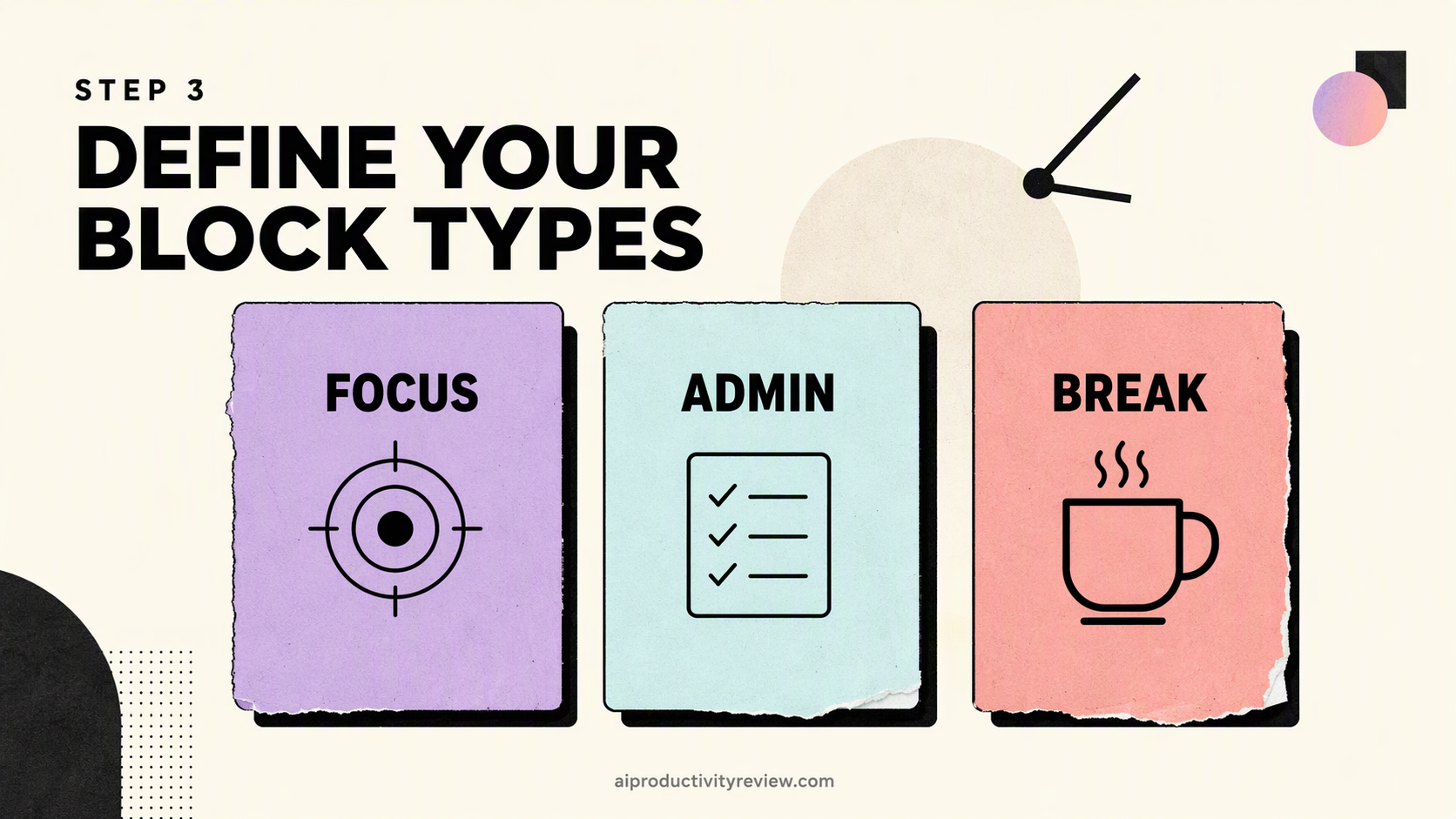
Keep it simple. Something like:
- Deep work (60–120 min): writing, analysis, building
- Shallow work (25–45 min): email, admin, quick reviews
- Meetings: already on your calendar, the AI works around them
Many apps let you mark the hours where deep work is allowed. Give it your best brain hours, usually the morning for most people, but you know your own body clock better than any app does.
Step 4: Dump every open task into one inbox
Every task the AI should schedule needs to live in one place. Pull them out of your head, your notes app, your email, and that sticky note on your monitor.
If you have a pile of messy notes, brain dumping with AI is the fastest way to turn them into a clean list.
Step 5: Add three fields to each task
For every task, add:
- Duration (rough is fine)
- Deadline (hard or soft)
- Priority (high, medium, low; resist marking everything high 😅)
Big vague tasks ("work on launch") should be split first. Breaking a task down with AI takes about a minute per project.
Step 6: Apply the padding rule
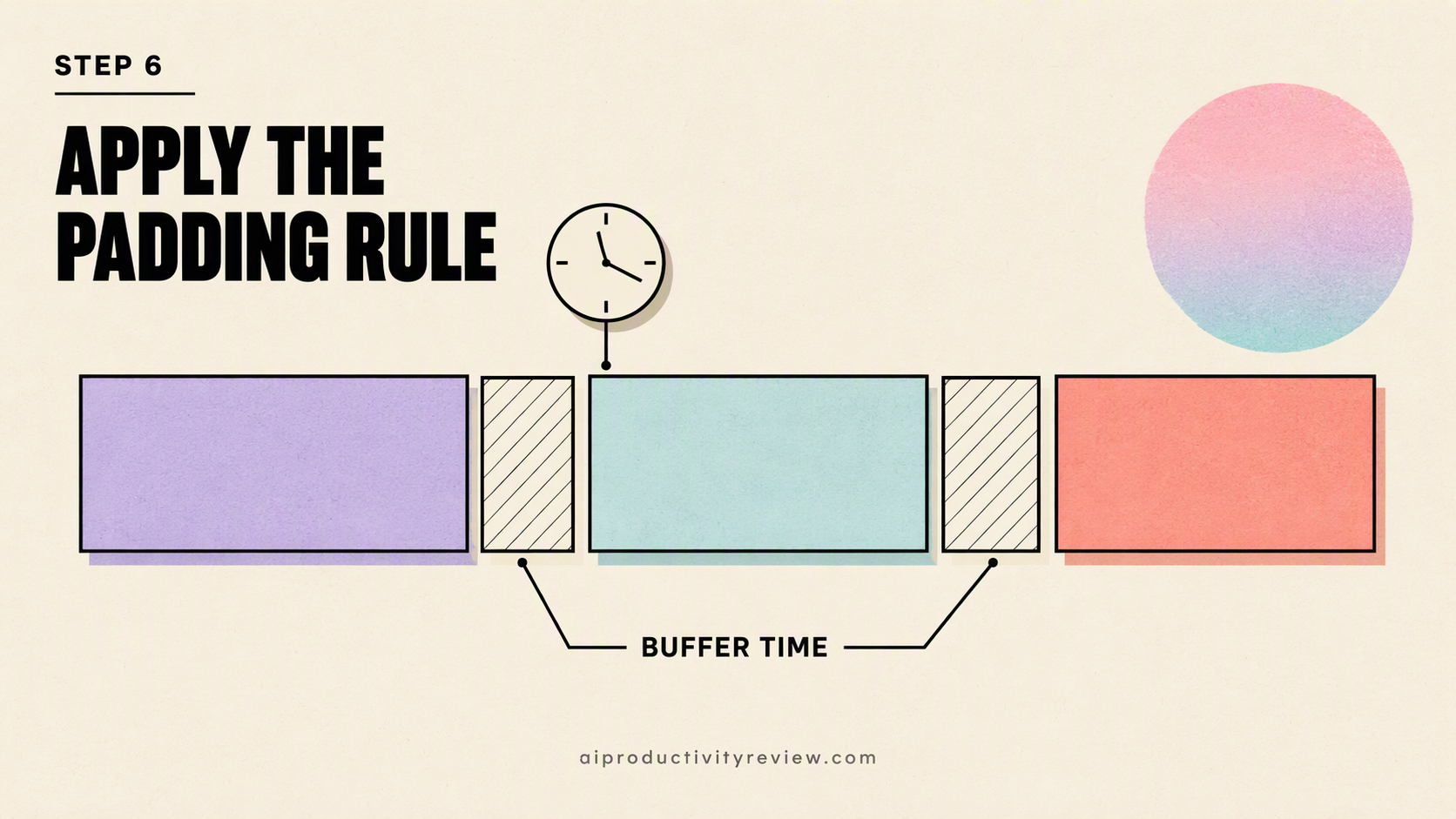
Because of the planning fallacy, add a buffer to every estimate. A simple rule: multiply your gut estimate by 1.5 for anything you haven't done recently. Then leave roughly 20% of each workday unscheduled. Those empty slots are where the AI moves stuff when things run long.
This 1.5x figure is a rule of thumb, not a research finding. Adjust it after two weeks based on what actually happened.
The daily AI time blocking routine (10 minutes)
Morning: approve the plan (5 minutes)
- Open your calendar and look at what the AI placed.
- Ask: "If I only finish one block today, which one?" Make sure that block sits in your best hours.
- Drag anything that feels wrong. Most tools learn or at least respect your manual moves.
- Close the app. Start the first block. Don't keep tinkering. ✋
If you want a longer morning ritual, our 9-minute guide to planning your day with AI covers the full version.
During the day: let it reshuffle
When a meeting runs over or a task takes longer, mark it in the tool (extend the task, or flag it unfinished). Let the AI move the rest. Your only job is to not rebuild the plan in your head.
End of day: close the loop (5 minutes)
- Mark what's done.
- Push or re-estimate anything unfinished.
- Write down one note for tomorrow's first block, so you start without warming up.
That last step has research behind it. In a set of experiments, unfinished goals kept intruding on people's thoughts, but making a specific plan for them reduced those intrusions (Masicampo & Baumeister, 2011). A scheduled block for tomorrow counts as that plan. Your brain can clock out. 🧠
Weekly: a 20-minute review
Once a week, check whether your priorities still make sense and whether your duration estimates were wildly off. Our guide to the AI-assisted weekly review walks through it.
Which AI time blocking app should you use?
| App | Style | Best for | Starting price | Free option |
|---|---|---|---|---|
| Motion | Full autopilot | Busy people who want zero manual scheduling | Pro AI from $19/seat/mo (monthly billing) | Free trial |
| Reclaim.ai | Autopilot for tasks + habits | Google Calendar users who want focus time protected | Starter ~$10/user/mo monthly, ~$8 annual (CostBench) | Free Lite plan |
| Akiflow | Manual drag + AI assistant | Keyboard-heavy users with tasks in 10 different tools | $34/mo monthly or $19/mo annual | 7-day trial |
| Saner.ai | AI assistant that plans from notes, email, and tasks | People whose tasks are buried in messy notes and inboxes | From $8/mo | Free plan |
Saner.ai: best when your tasks are hiding in notes and email
Most time blocking apps assume your tasks are already neat and labeled. Real life isn't like that. Saner.ai is an AI assistant that pulls tasks out of notes, emails, and docs, plans your day around your calendar, and lets you reschedule by chatting ("move the report to Thursday afternoon"). It syncs with Google Calendar, email, Drive, and Slack on every plan, including the free one.
- Good: works from messy input; voice dumps turn into scheduled items; free plan
- Watch out: it's a general assistant, so power users who want Gantt charts and dependencies will prefer Motion
- More: Motion vs Saner.ai and Akiflow vs Saner.ai
Motion: best if you never want to drag a block again
Motion builds your whole schedule and reschedules it when things shift. It also handles projects, dependencies, and deadlines, so it's strong for people juggling several projects at once.
- Good: truly hands-off; great at deadline-driven work
- Watch out: it can feel like the calendar is bossing you around; pricing has changed several times, so double-check the current plan
- More: our full Motion review and Motion vs Reclaim comparison
Reclaim.ai: best free starting point
Reclaim sits on top of your calendar and defends focus time, habits, and tasks. Its blocks start "free" and become "busy" as time runs out, which is a neat way to stay flexible without losing the slot.
- Good: free Lite plan; habits like lunch and workouts are first-class citizens
- Watch out: the free plan's scheduling range is short (one week per CostBench), and team billing has extras
- More: our Reclaim.ai review
Akiflow: best for pulling tasks from everywhere
Akiflow collects tasks from email, Slack, and other tools into one inbox, then you drag them onto your calendar. Its AI assistant, Aki, is included in the Pro plan.
- Good: fast keyboard workflow; locks time blocks as real calendar events
- Watch out: no free plan, and the trial needs a card
- More: our Akiflow review
For a broader shortlist, see our roundups of the best AI calendar assistants and the best AI planners.
How do you pick the right AI?
Answer these in order. Stop at the first "yes."
- Do your tasks live in messy notes, email, and your head? → Start with Saner.ai.
- Do you want the AI to make every scheduling decision? → Motion.
- Is your budget $0 and you're on Google Calendar? → Reclaim's free plan.
- Are your tasks scattered across Slack, Gmail, Notion, and Asana? → Akiflow.
- Do you mostly want a calm morning ritual? → Sunsama.
Can you time block with ChatGPT or Claude instead?
Yes, partly. A general chatbot is decent at the planning half:
- Paste your task list and meetings, then ask: "Build me a time-blocked plan for tomorrow, 9–5, with deep work before noon and 20% buffer."
- Ask it to split big tasks or to sort tasks by priority. Our guide to prioritizing tasks with AI has prompts you can copy.
Where it falls apart: unless you connect it to your calendar, a chatbot can't see new meetings or move blocks for you. The moment something changes, you're back to manual reshuffling, which is the part you were trying to escape. Use chat for the thinking and a calendar-connected tool for the moving.
Your action plan
Here's what to do in the next hour:
- Pick one tool from the table. Free plan or trial only for now.
- Connect your calendars and set working hours, plus lunch and one buffer block.
- Dump 10 open tasks into it, each with a duration (×1.5), deadline, and priority.
- Let it schedule tomorrow. Approve or drag, then close the app.
- Run it for five workdays. Mark unfinished tasks honestly.
- On Friday, ask one question: did I rebuild my plan in my head less often? If yes, keep it. If no, try the next tool on the list.
That's it. You don't need a perfect system. You need a calendar that bounces back on Wednesday. 💪
FAQ
What is the best AI for time blocking?
It depends on how much control you want. Motion is the most hands-off auto-scheduler. Reclaim.ai offers the best free plan for Google Calendar users. Morgen suits people who want to approve every block. Saner.ai fits people whose tasks start out in messy notes, email, and voice memos.
Is there a free AI time blocking app?
Yes. Reclaim.ai has a free Lite plan, and Saner.ai has a free plan. Google Calendar itself is free but doesn't auto-schedule tasks. Most paid apps (Motion, Akiflow) offer free trials instead.
Does time blocking actually work?
The research on planning supports it. Specifying when and where you'll act improves follow-through (Gollwitzer & Sheeran, 2006), and making a concrete plan for unfinished goals reduces intrusive thoughts about them (Masicampo & Baumeister, 2011). The weak spot is keeping the plan current, which is what AI tools handle.
How is AI time blocking different from timeboxing?
Time blocking assigns tasks to specific slots on your calendar. Timeboxing caps how long you'll spend on a task ("this gets 45 minutes, then I stop"). AI tools mostly automate time blocking, but you can add timeboxing by setting fixed durations and refusing to extend them.
How long should a time block be?
For focused work, 60 to 120 minutes is a common range. For admin and email, 25 to 45 minutes. Avoid stacking lots of tiny blocks, since frequent task switching leaves "attention residue" that hurts performance on the next task (Leroy, 2009).
Sources
- Gollwitzer, P. M., & Sheeran, P. (2006). Implementation intentions and goal achievement: A meta-analysis of effects and processes. Advances in Experimental Social Psychology, 38. doi.org/10.1016/S0065-2601(06)38002-1
- Buehler, R., Griffin, D., & Ross, M. (1994). Exploring the "planning fallacy." Journal of Personality and Social Psychology, 67(3). doi.org/10.1037/0022-3514.67.3.366
- Leroy, S. (2009). Why is it so hard to do my work? Organizational Behavior and Human Decision Processes, 109(2). doi.org/10.1016/j.obhdp.2009.04.002
- Mark, G., Gudith, D., & Klocke, U. (2008). The cost of interrupted work: More speed and stress. CHI '08. doi.org/10.1145/1357054.1357072
- Masicampo, E. J., & Baumeister, R. F. (2011). Consider it done! Plan making can eliminate the cognitive effects of unfulfilled goals. Journal of Personality and Social Psychology, 101(4). doi.org/10.1037/a0024192