GTD With AI: How to Run Getting Things Done Without the Busywork

GTD works. The upkeep is what kills it.
David Allen's Getting Things Done method has been around since 2001, and the core idea still holds: get every open loop out of your head and into a system you trust.
The trouble is the admin.
Processing the inbox, writing proper next actions, tagging contexts, sitting through a weekly review. That's the part most people abandon around week three. 🙃

AI is very good at exactly that admin. So this guide shows you how to run each of the five GTD steps with AI doing the boring half, and you keeping the decisions.
Quick answer: how do you use AI for GTD?
Use AI to do GTD's clerical work and keep the judgment calls for yourself. In practice:
- Capture: dump everything (voice, email, notes) into one AI inbox without sorting it.
- Clarify: have AI turn each vague item into a concrete next action, flag 2-minute tasks, and spot projects.
- Organize: let AI suggest contexts, projects, and dates. You approve or fix them.
- Reflect: use AI as a weekly review coach that walks you through the checklist and flags stale items.
- Engage: ask AI "what can I do right now with 30 minutes and my laptop?" and pick from its short list.
What is GTD, in one minute?
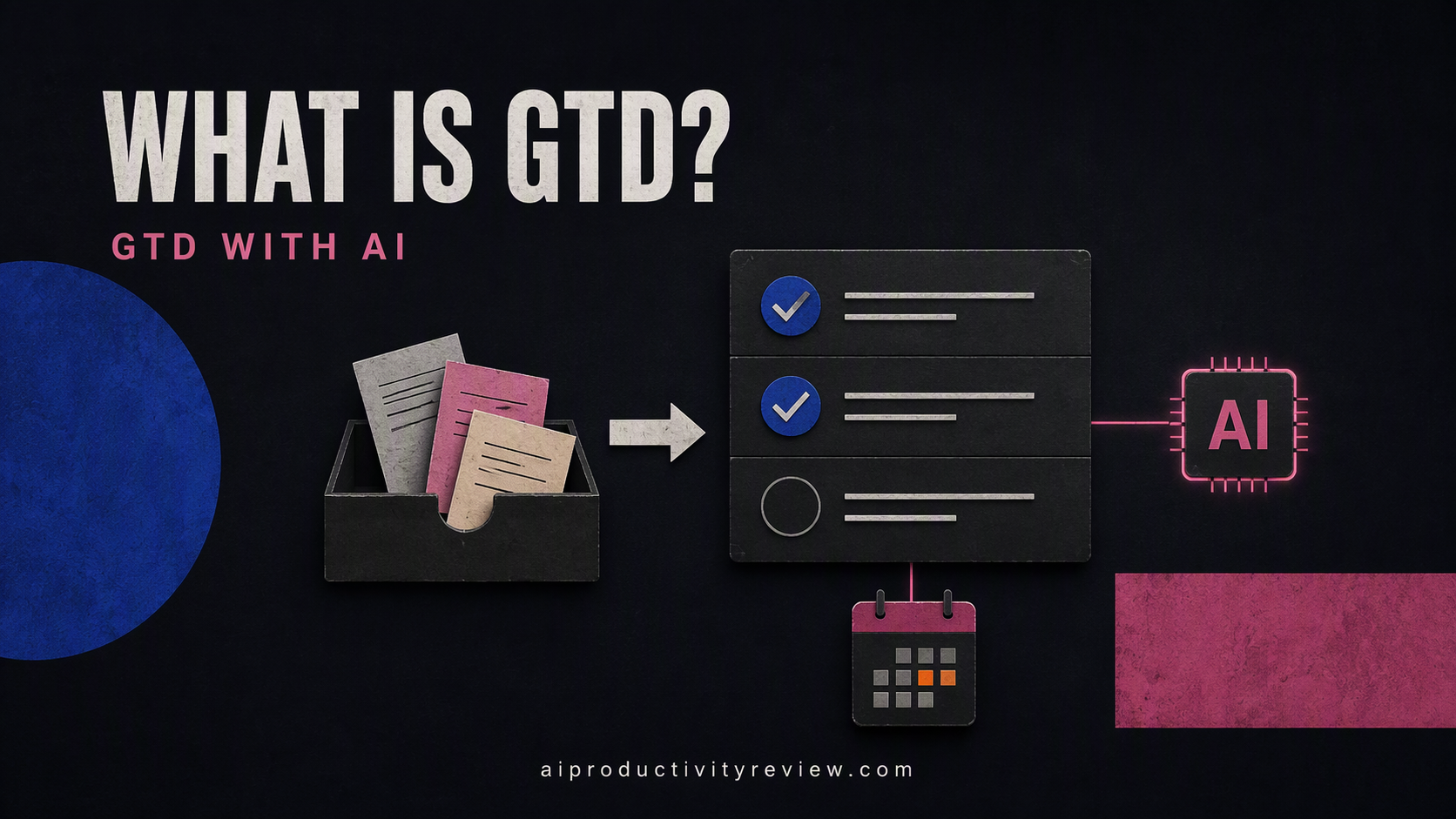
GTD is a five-step workflow for handling everything that grabs your attention. The official steps, straight from the David Allen Company, are:
- Capture: collect what has your attention.
- Clarify: process what it means.
- Organize: put it where it belongs.
- Reflect: review frequently.
- Engage: simply do.
A few core GTD ideas you'll see below:
- Next action: the very next physical, visible thing you'd do to move something forward. "Call Dana about the invoice," not "invoice stuff."
- Project: anything that takes more than one action. "Plan the offsite" is a project.
- Contexts: where or how you can do a task (@computer, @phone, @errands).
- Two-minute rule: if it takes under two minutes, do it now.
- Weekly review: a regular sweep to get clear, current, and back in control.
Why does GTD feel like so much work?
Because the method asks you to make dozens of tiny decisions in a row, and most of them aren't interesting.
Think about clarifying a single email. You have to read it, decide if it's actionable, figure out the next action, phrase it as a verb, pick a context, decide if it belongs to a project, and maybe set a date. Multiply that by a 40-item inbox and you've got a part-time job nobody asked for.
There's also a reason the "get it out of your head" part matters. A 2008 paper by Francis Heylighen and Clément Vidal, "Getting Things Done: The Science behind Stress-Free Productivity", argued that GTD lines up with research on working memory limits and distributed cognition: your head is a poor place to store reminders, and offloading them to an external system frees up attention.
So the payoff of GTD is there. The cost is the processing. That's where AI earns its keep.
Which GTD steps should AI handle (and which should you keep)?

Here's how I'd split it. Short version: AI drafts, you decide.
| GTD step | What AI does well | What you should keep |
|---|---|---|
| Capture | Transcribing voice notes, pulling tasks out of emails and meeting notes | Deciding to capture at all (the habit) |
| Clarify | Rewriting vague items as next actions, spotting projects, flagging 2-minute tasks | "Is this actually mine? Do I care?" |
| Organize | Suggesting contexts, projects, due dates, grouping duplicates | Final approval, especially on dates |
| Reflect | Running the weekly review checklist, finding stale or stuck items | Choosing what to drop or renegotiate |
| Engage | Filtering a short list by context, time, and energy | Picking the task and doing it |
Step 1: How do you capture everything with AI?
Capture should be fast and dumb. No sorting, no thinking. AI makes it faster because you can capture in whatever format is easiest in the moment.
Set up one inbox. Pick a single place that accepts text, voice, and forwarded email. Multiple inboxes are how GTD systems spring leaks.
Capture methods that work well with AI:
- Voice dumps. Talk for two minutes while walking. Let the app transcribe it. AI can split one rambling voice note into ten separate items later. I personally do this on Saner.AI
- Email forwarding. Forward actionable emails to your task inbox instead of leaving them starred. If your inbox is the real problem, our guide on how to use AI to manage email goes deeper.
- Meeting notes. Paste notes or a transcript and ask AI to extract every commitment. We have a full walkthrough on turning meeting notes into tasks with AI.
- The full mind sweep. Once in a while, do a big "everything in my head" session. Our brain dump with AI guide has prompts for this.
Step 2: How do you clarify inbox items with AI?
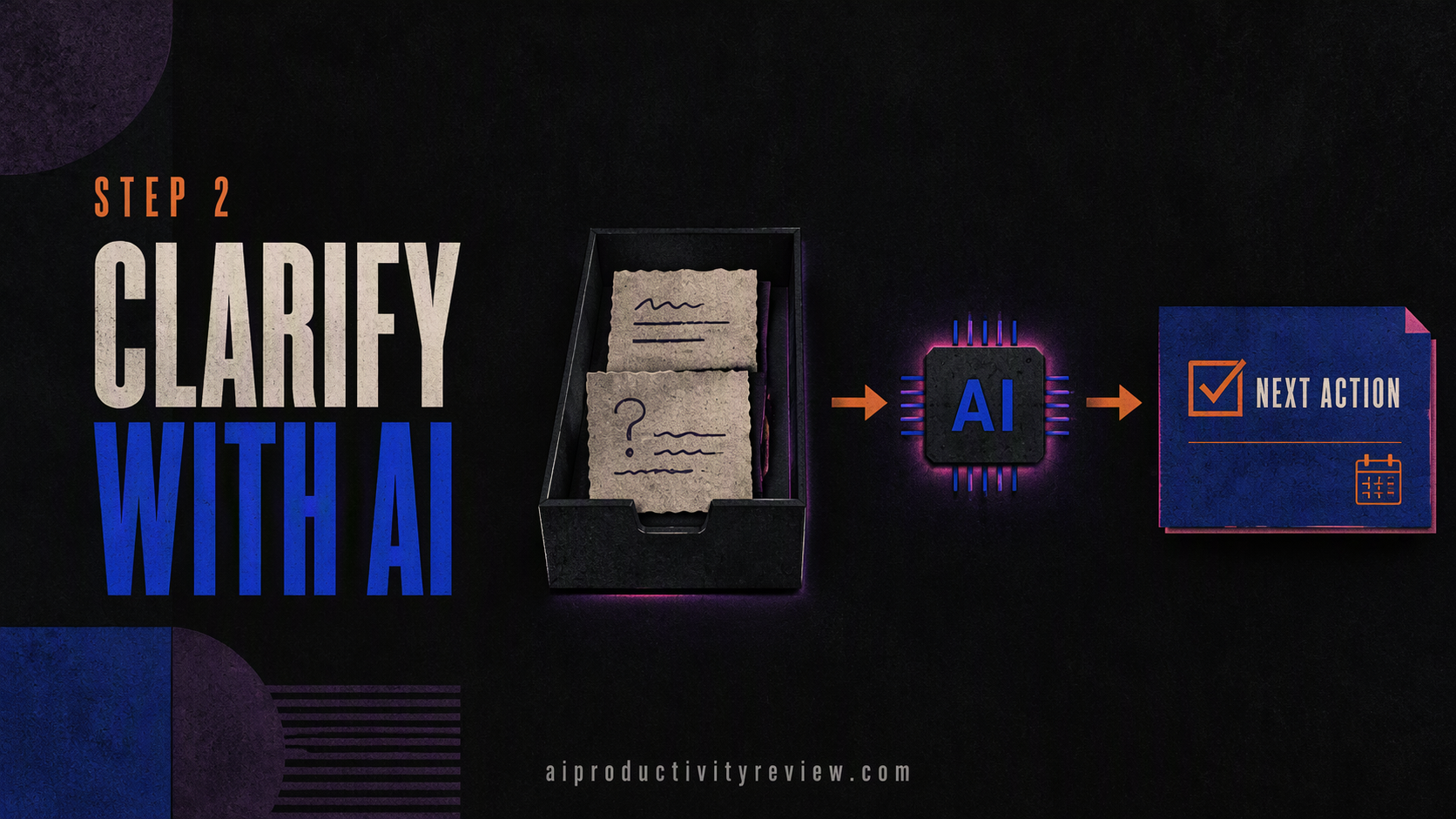
This is where AI saves the most time. Clarifying is mostly a writing job: turning fuzzy noun phrases into clear verbs.
The clarify questions GTD asks for each item:
- What is it?
- Is it actionable?
- If not: trash it, file it as reference, or park it in Someday/Maybe.
- If yes: what's the next action? Is it part of a project? Does it take under two minutes?
Copy-paste clarify prompt:
Act as a GTD processing assistant. For each item below, return:Actionable? (yes/no)If no: trash, reference, or someday/maybeIf yes: the next physical action, starting with a verbIs it a multi-step project? If so, suggest a project name and outcomeLikely under 2 minutes? (yes/no)
Ask me a question instead of guessing when an item is ambiguous.
[paste items]
What good output looks like:
- "Dentist" → Next action: "Call Dr. Lin's office to book a cleaning" · @phone · under 2 min? No.
- "Website redesign" → Project: "New homepage live." Next action: "Email Sam three homepage examples I like."
- "Article on sleep someone sent me" → Not actionable → Reference (or trash, let's be honest).
Two rules that keep clarify honest:
- Do the 2-minute items yourself, right away. AI can flag them. It can't reply to your landlord for you (well, it can draft it, but you still hit send).
- Overrule bad next actions. If AI writes "Work on budget," that's not a next action. Push back: "Make it smaller and physical."
If a task still feels too big, our guide on how to break down a task with AI covers this in detail.
Step 3: How do you organize GTD lists with AI?
Organizing means putting each clarified item into the right bucket. Classic GTD buckets:
- Projects list (every outcome needing more than one action)
- Next actions by context (@computer, @phone, @errands, @home, @office)
- Waiting for (things you delegated or are expecting)
- Calendar (only things that truly must happen on a specific day or time)
- Someday/Maybe
- Reference
AI is handy here because sorting is pattern-matching. Give it your list of contexts and projects once, then let it suggest where each item goes.
Copy-paste organize prompt:
My contexts are: @computer, @phone, @errands, @home, @deep-work.
My active projects are: [list].
For each next action below, suggest a context and a project (or "standalone"). Only suggest a date if the item clearly has a hard deadline. Put anything I'm waiting on from someone else in "Waiting for" with the person's name.
[paste actions]
If you're comparing tools that do this sorting automatically, our roundup of the best AI task managers breaks down which ones auto-categorize well.
Step 4: How do you run a GTD weekly review with AI?

The weekly review is the step that holds GTD together, and it's the one people skip first. It's long, a bit tedious, and easy to postpone "until next week" forever.
AI helps in two ways: it walks you through the checklist so you don't have to remember it, and it scans your lists for problems you'd otherwise miss.
A simple AI weekly review (about 30 to 45 minutes):
- Get clear. Empty every inbox. Run the capture and clarify prompts above on anything left.
- Get current. Paste your projects and next actions and ask AI to flag issues (prompt below).
- Look back and ahead. Paste last week's and next week's calendar. Ask what follow-ups or prep tasks are missing.
- Scan Someday/Maybe. Ask AI to list anything that's sat there for a long time so you can promote it or delete it.
- Pick the week's focus. You choose. AI can suggest, but this one's yours.
Copy-paste review prompt:
Here are my projects and next actions. Flag:Projects with no next actionNext actions that are vague or too bigItems in "Waiting for" with no follow-up dateDuplicatesAnything that looks stale and should be renegotiated or dropped
Don't delete anything. Just list the problems and suggest fixes.
We wrote a whole guide to running a weekly review with AI if you want a longer version with variations.
Step 5: How do you use AI to decide what to work on?

GTD's original approach to choosing a task is to filter by four things, in order: context, time available, energy available, and priority.
AI is a decent filter if your lists are tagged. Ask it something like:
I'm at my laptop, I have 40 minutes, and my energy is medium. From my next actions list, suggest three tasks I could finish in that window. Prefer anything tied to [this week's focus].
Why three and not one? Because you still need to choose. Being handed one task feels like a boss. Being handed three feels like a menu, and you're more likely to actually start.
If choosing between tasks is your biggest pain point, our guide on how to prioritize tasks with AI goes further. And if the problem is starting at all, try using AI to stop procrastinating.
What about time blocking? Classic GTD is skeptical of scheduling every task on the calendar, because plans break the moment your day changes. Some people combine GTD lists with AI calendar scheduling anyway. If that's you, keep the calendar for a few protected blocks and let the rest live on context lists.
My best AI calendar assistants roundup covers the auto-scheduling tools.
What are the best AI tools for GTD in 2026?
You can run GTD with AI in two ways: a general chatbot plus your existing task app, or a task app with AI built in. Here's how the main options compare.
| Tool | Best for | AI-for-GTD highlights | Watch out for |
|---|---|---|---|
| Saner.AI | People who want capture, notes, tasks, and calendar in one assistant | Chrome capture, voice capture, emails turned into tasks, an AI assistant that plans your day and checks in | Notes-first design; strict GTD purists may want more classic list views |
| Nirvana (NirvanaHQ) | GTD purists | Built for GTD; its AI assistant can run guided weekly reviews and inbox processing, plus MCP support for external AI clients | AI assistant is in early-access beta for Pro users only; no calendar integration in the assistant |
| OmniFocus 4.8+ | Apple users who love customization | On-device Apple Intelligence via Omni Automation plug-ins like "Help Me Plan" that split a task into smaller ones | Apple-only; AI features run through plug-ins, so expect some setup |
| ChatGPT / Claude + your current app | Anyone not ready to switch tools | Very flexible for clarify and review prompts | No memory of your lists unless you paste them or connect an app; easy to drift into chatting instead of doing |
GTD's biggest leak is capture spread across too many places: a sticky note, a starred email, a Slack DM, a thought you had in the shower. Saner.AI is built around pulling those into one spot and having its assistant turn them into tasks and a daily plan. It's also pitched as ADHD-friendly, which tracks, since GTD's "trusted external brain" idea is especially useful when your working memory is unreliable.
If that sounds like you, see our best AI task manager for ADHD picks too.
FAQ
Is GTD still worth it with AI tools?
Yes. AI makes GTD easier to maintain because it handles clarifying, sorting, and review prep, which are the steps people usually drop. The method's core value, getting open loops out of your head into a trusted system, doesn't change with AI. What changes is how long the upkeep takes.
What is the best AI app for GTD?
It depends on how strict you are. Nirvana is built specifically around GTD and has an AI assistant in beta for Pro users. OmniFocus suits Apple users who like customization. Saner.AI suits people whose main problem is scattered capture across email, notes, and calendar. My AI for task management guide covers the wider category.
Does AI break the two-minute rule?
No, but it changes how you apply it. AI can flag items that probably take under two minutes and even draft quick replies. You should still do those items yourself during clarify, right away, instead of letting them pile up on a list.
How long should an AI-assisted weekly review take?
Plan on 30 to 45 minutes once your system is set up. The first few reviews will take longer while you clean up old lists. AI shortens the review mostly by flagging stale projects, vague actions, and missing follow-ups so you don't have to hunt for them.
Is GTD with AI good for ADHD?
Many people with ADHD find external systems helpful because they reduce how much you need to hold in your head. AI lowers the effort of capturing and clarifying, which is often where things stall.
Takeaways: your GTD-with-AI starter checklist
- ✅ Pick one inbox that accepts voice, text, and email.
- ✅ Use AI to clarify: turn every item into a verb-first next action.
- ✅ Do 2-minute items yourself, immediately.
- ✅ Keep contexts to five or six and be stingy with dates.
- ✅ Run a weekly review with an AI checklist, but make the final calls yourself.
- ✅ When choosing what to do, ask AI for three options, then pick one and start.
Sources
- David Allen Company, "What is GTD?" five steps: gettingthingsdone.com/fivesteps
- Heylighen, F., & Vidal, C. "Getting Things Done: The Science behind Stress-Free Productivity": PDF
- Masicampo, E. J., & Baumeister, R. F. (2011). Consider it done! Plan making can eliminate the cognitive effects of unfulfilled goals. Journal of Personality and Social Psychology: doi.org/10.1037/a0024192