AI Email Management: The 4-Pass System That Clears Your Inbox

AI email management means handing the sorting, summarizing, and drafting parts of your inbox to an AI assistant, while you keep the two things it can't do: deciding what deserves a reply, and deciding what the email means for your week.
That second half is where most people (I) lose. They install a smart inbox, it labels 400 emails beautifully, and three weeks later the inbox is still 400 emails deep. Prettier labels, same pile. 🙃
I spent a chunk of this year testing this on my own mail. Roughly 90 emails a day, including at least four newsletters I swore I never signed up for.

In this post, I will share the setup that stuck. Twenty-five minutes to build, about 12 minutes a day to run.
What is AI email management?
It's using an AI assistant to do four jobs on your inbox:
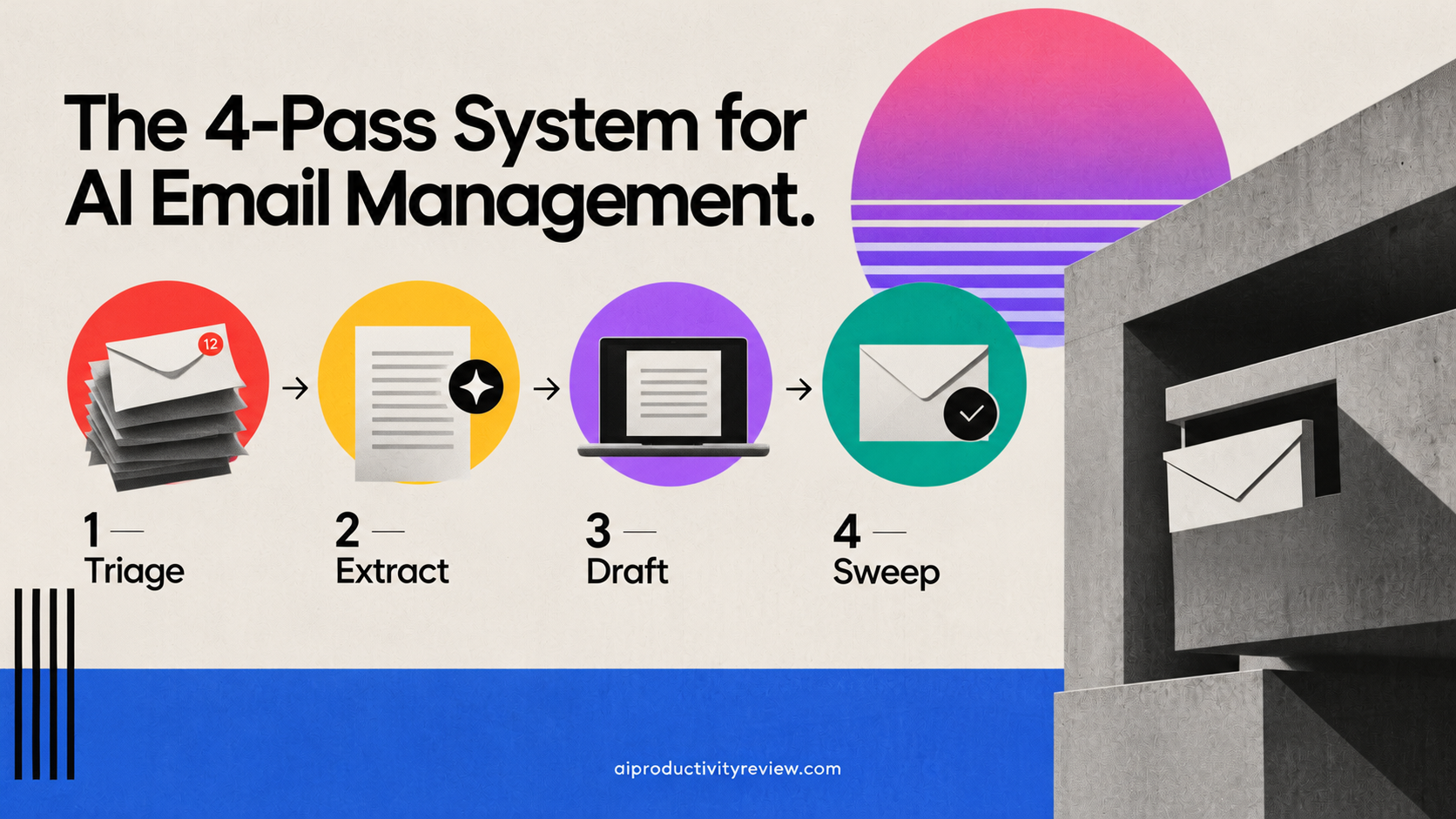
- Triage. Rank what's actually urgent instead of showing you everything in arrival order.
- Extract. Pull the commitments buried in email bodies and turn them into dated tasks.
- Draft. Write the reply you were going to write, in your words, so you're editing instead of composing.
- Sweep. Kill the recurring junk at the source.
Notice there's no Deciding. No AI should be sending mail on your behalf in week one, and possibly not ever, depending on your job.
The 4-pass system for AI email management
Pass 1: Triage (5 minutes, once in the morning)
Don't open your inbox. Open your assistant and ask it what's in there.
The prompt I use, more or less verbatim:
Summarize my unread email from the last 18 hours. Group into: (1) needs a reply from me today, (2) needs a decision but not today, (3) FYI only, (4) noise. For group 1, give me one line each: who, what they want, and the deadline if there is one. Don't summarize newsletters.
What you get back is a 10-line briefing. Read it. Then - close the assistant and do your first block of real work. The briefing exists so you can safely not open your inbox until 11am.
Here's a real briefing from last Tuesday, lightly anonymized:
Reply today (3)Priya — wants the revised Q3 numbers. Deadline: Thursday EOD.Marcus — asking if you're still speaking at the October event. No deadline, but he's following up a second time.Your landlord — lease renewal form. Deadline: Friday.
Decide, not today (2) — contractor quote for the bathroom; a podcast invite for November.
FYI (6) — three GitHub notifications, two calendar accepts, one shipping update.
Noise (41)
Forty-one of 52 emails were noise. That ratio is normal
A few notes from doing this badly for a while:
- Ask for the deadline explicitly. Otherwise you get "Priya wants the deck" and you have no idea if that's a today problem.
- "Don't summarize newsletters" saves you about 40% of the output. Newsletters are group 4 forever.
- If group 1 has more than seven items, your assistant is being too generous. Tell it to cap group 1 at five and push the rest down.
For me, I get this automatically on Saner.ai - which saves a lot of time
Pass 2: Extract (3 minutes, same sitting)
Email is where your commitments hide. Someone writes four paragraphs and buried in paragraph three is "can you send the revised numbers by Thursday." That's a task wearing an email costume. It lives in your inbox, so it stays in your inbox, and on Thursday you're surprised.

So the second prompt:
From the emails you just flagged in groups 1 and 2, list every commitment I made or that someone is expecting from me. Format as: task — who's waiting — due date. If no date was stated, say "no date."
Then move those into whatever holds your tasks. Not a note. Not a starred email. Your actual task system — the one you look at when you plan your day.
This is where a tool that spans both sides helps. Saner.ai is the one I use, because it holds notes, tasks, and calendar in one place and can take "revised numbers for Priya, Thursday" straight into a dated task without me retyping it. Use something else if you prefer. The rule is just that the commitment has to leave the inbox. An inbox makes a terrible to-do list: it's sorted by when other people happened to type, which is the least useful sort order ever invented.
Still figuring out where those tasks should land? The five-layer AI task management system covers capture and clarify in more depth, and the best AI task managers roundup compares the tools that do the holding.
Pass 3: Draft (batch, once in the afternoon or when you like)
Now you actually open the inbox. Once. For me it's around 2 or 3pm, after your best thinking hours are spent.
For each item in group 1, ask for a draft:
Draft a reply to this. Match my usual tone: direct, short, no filler openers. Answer their question in the first sentence. If I need information I don't have, write the draft asking for it instead.
Three things make drafts usable instead of embarrassing:
- Give it samples. Paste four or five of your own past replies once, and tell it "this is how I write.". Skip it and you get "I hope this email finds you well" a sentence no human has ever said out loud.

- Cap the length. "Under 90 words unless the question needs more." AI writes long by default. Your recipients do not want long.
- Edit every one. Every single one. I've been doing this all year and I have never sent a draft unchanged. Usually I fix two sentences and the sign-off. Twenty seconds of editing beats ninety seconds of staring at a blank reply box.
One more thing that took me too long to figure out: tell it what you don't know. Half my drafts used to invent a date or a number because I'd asked for a reply and it obliged. Now the prompt says to write the question instead of guessing, and the hallucinated commitments stopped.
Reply to everything in group 1. Then reply to group 2 only if a reply takes under two minutes. Everything else becomes a task, and we're back to Pass 2.
Pass 4: Sweep (10 minutes, once a week)
Once a week, deal with the source instead of the symptom.
Look at the last 7 days of mail. Which senders sent me more than 3 emails I never opened? List them with the sender address.
Then unsubscribe from all of them. Not "later." Now, while the list is on screen. You will feel a small pang about the one newsletter you meant to read someday. Unsubscribe anyway. If it's good, it'll find you again.

Second sweep prompt, which I stole from a friend and now consider essential:
Which emails in my archive from the last 30 days are still waiting on a reply from someone else?
That's your follow-up list. Most people track the mail they owe and completely ignore the mail they're owed, which is how projects die quietly.
Which tool to use for AI email management?
You don't need four tools, but you do need to know what each type is good at.
- Inbox-native AI (the assistant built into Gmail, Outlook, or Superhuman). Best at Pass 3 drafting, because it already has the thread context. Weakest at Pass 2, because it has no idea your task system exists.
- General chat assistants (Claude, ChatGPT). Strongest at Pass 1 triage and the Pass 4 analysis, assuming you can give them inbox access. Good at drafting once they've seen your voice.
- Connected personal assistants (the category in our best AI personal assistants roundup). The only ones that do Pass 2 properly, because they see your email, your tasks, and your calendar at once.
- Messaging-based assistants (Poke, Tomo, and the alternatives). Good for people who refuse to open another app. The briefing arrives as a text message.
If that list already feels like too much, start with AI assistants for beginners and come back. One tool. One mailbox. One week.
Five mistakes that kill AI email setups
1. Letting it send. Autonomous sending is the feature everyone wants and nobody should enable in month one. One confidently wrong reply to a client costs more than every minute you saved. Draft, review, send. That's the order.
2. Triaging more than twice a day. If you run Pass 1 six times, you've rebuilt the original problem with extra steps. Two checks. That's it.
3. Keeping tasks in the inbox. Starring an email is not a task. Snoozing is just scheduling the same feeling for Tuesday.
4. Skipping the voice samples. Without them your drafts sound like a press release and you'll rewrite from scratch
5. Expecting it to decide. AI can tell you Priya's email mentions Thursday. It cannot tell you whether Priya outranks the thing you promised your co-founder. That's judgment, and it stays yours. Same split that makes planning your day with AI work.
When AI won't help email management
- Under 10 emails a day. The setup costs more than it saves. Just read your mail.
- Regulated or confidential inboxes. Legal, clinical, HR. Check your organization's policy before connecting anything, and assume the answer is no until someone puts yes in writing.
- Email as your actual product. Support reps, recruiters, salespeople. You need a purpose-built tool with templates and tracking, not a general assistant.
- Avoidance rather than volume. Some people stop opening email because of what's in it, not how much of it there is. A better filter does nothing for that, and it's worth naming honestly.
- For the ADHD version of the problem, where the sticking point is starting rather than sorting, the AI assistants for ADHD breakdown will help more than anything here.
FAQ
Is AI email management safe?
It depends entirely on what you connect. Any assistant with inbox access can read everything in it, including things you forgot were in there. Read the data policy, check whether your mail is used for training, and don't connect a work account without approval.
How much time does it actually save?
For me, roughly 40 minutes a day, most of it from not re-opening the inbox between tasks rather than from faster reading. Your number depends mostly on how many times a day you currently check.
Can AI reply to emails automatically?
Technically yes, most tools support it. I'd keep it off except for genuinely mechanical replies — scheduling confirmations, "received, thanks." Anything requiring judgment gets drafted and reviewed.
Will people know an AI wrote my email?
If you don't edit, yes, eventually. The tells: long openers, tidy three-item lists, and a weirdly enthusiastic closing line. Fix the first sentence and the last one and nobody notices.
Does this work with Outlook and Gmail both?
Yes. Everything above is prompt-based, so it works with whichever assistant you've connected to whichever mailbox. The native tools differ. The four passes don't.
Do this today
Twenty-five minutes, and you're running:
- Turn off every email notification on your phone. Right now, before you read the rest of this list.
- Paste five of your sent emails into your assistant and tell it to learn your voice.
- Save the triage prompt and the extract prompt somewhere you can reach in two seconds.
- Put a 10-minute morning triage and a 20-minute afternoon reply block on your calendar as recurring events.
- Run it Monday through Friday without tweaking anything.
Friday, check one number: how many times did you open your inbox? If it's under four a day, it's working. If it's fourteen, the notifications are still on somewhere. They're always still on somewhere.
Sources used in research: