Mem Is Shutting Down: How to Export Your Notes and Alternatives

Mem is shutting down. If you have notes in there, you have until January 15, 2027 to get them out.

Mem announced it on November 16, 2026 (Mem blog). After seven years, it's closing. So sad. But we have to move one
So I write this post to:
- Gets your notes out safely
- Helps you pick where they go next
Quick picks: Where to move from Mem?
- Want an AI that organizes for you, like Mem did? Saner.AI
- Want your notes as files you own forever? Obsidian
- Already use Notion at work? Notion
- Like structure (people, books, meetings as "objects")? Capacities
- Want a free place to ask questions across your old notes? Gemini Notebook
Step 1: Export your Mem notes
Don't wait for December. Export now, then again before January 15 if you keep editing. The export is a snapshot.
From Mem's save-a-copy guide:
- Use a computer. The export doesn't run on mobile.
- Go to Settings → Exports and click Start new export.
- Choose My Computer.
- Want your audio recordings? Tick that option before you start. It makes the file much bigger.
- Download the ZIP. Keep an untouched copy somewhere safe (cloud drive, external disk, both).
What's inside the ZIP:
notes/: one Markdown (.md) file per notecollections/: an index for each collection, linking to its notesattachments/: files your notes referenceexport-report.md: only appears if something couldn't be included. If you see it, read it.
What probably won't come with you: Mem's own docs don't list it, but other apps' migration guides say Mem Chat history, auto-organize and shared collections don't carry over. Your notes move. The AI's "understanding" of them doesn't.
Check your export. Mem itself warns that "a ready file can still have a missing attachment or transcript" (check-your-move guide). Open five random notes. Open three with attachments. Two minutes now saves a bad surprise in February.
Step 2: Decide what you actually used Mem for
- "I dumped everything in and let AI sort it." You need auto-organizing AI. Look at Saner.AI.
- "It was my long-term knowledge base." You need durable storage and good linking. Look at Obsidian or Capacities.
- "It was where my meeting notes and to-dos lived." You need notes plus tasks. Look at Saner.AI or Notion.
- "I mostly used Mem Chat to ask questions about my notes." Every pick below can do some version of this. Some need your own API key.
1. Saner.AI: best if you want AI to keep organizing for you
Price: Free. Starter $8/month, Standard $16/month
Mem's big promise was "don't organize, just capture." Saner.AI makes the same bet and adds the stuff Mem never really did: tasks, calendar and email.
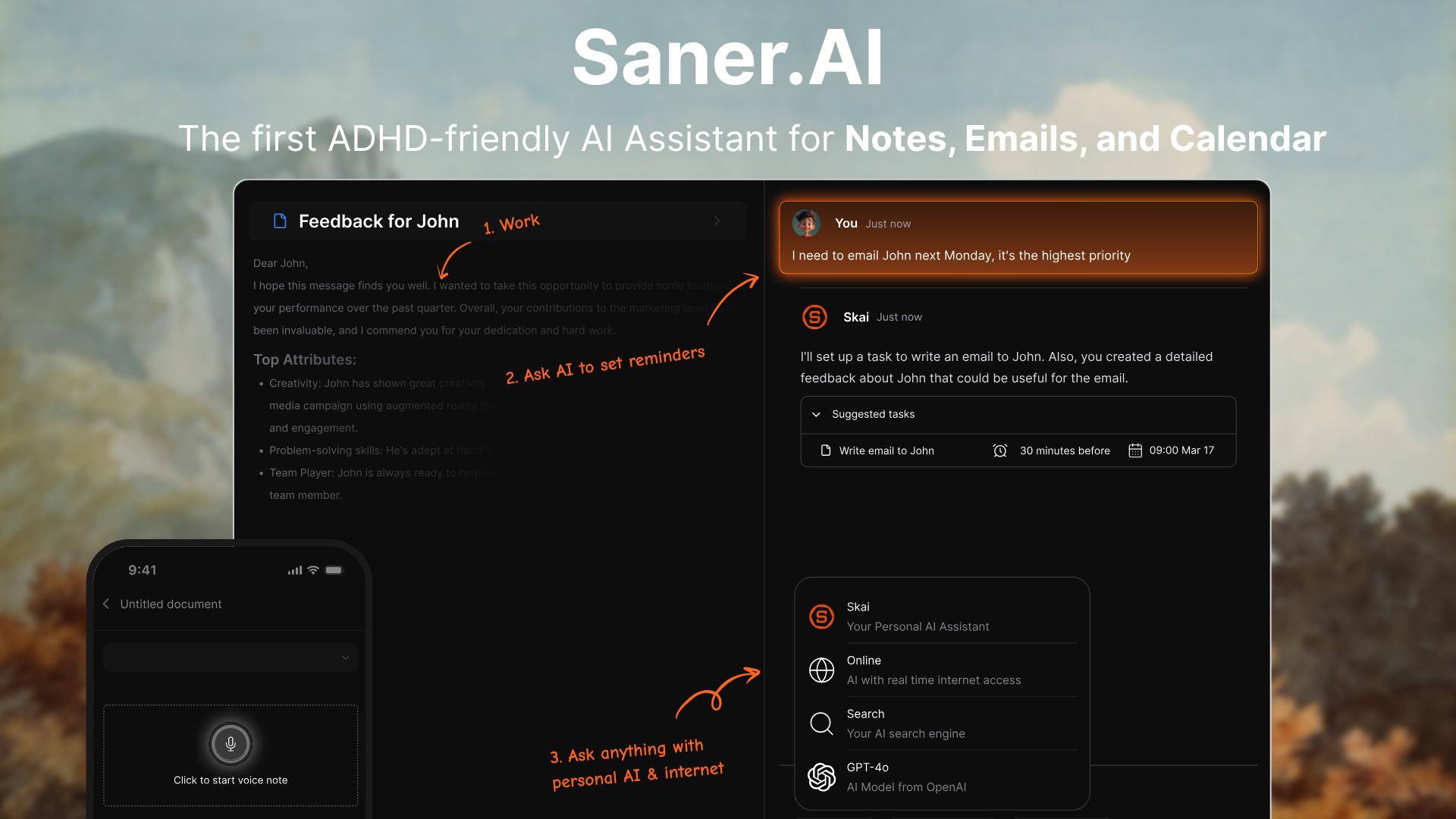
What carries over well from Mem:
- Capture without filing. AI suggests tags and folders.
- Ask your notes. The AI answers questions across your notes and the web.
- Related notes surface stuff you saved and forgot.
What Mem didn't have:
- Email and calendar. It pulls tasks from Gmail and plans your day around Google Calendar.
- Tasks in the same place as notes. "Follow up with Luna" lives next to the meeting note it came from.
How to move your Mem notes in:
- Unzip your Mem export.
- In Saner, go to Add → Import
- Drag in files from the
notes/folder. Markdown is supported. Each file must be under 10MB. - Start with your last 3 months of notes. See how it feels before moving the archive.
Where it falls short:
- Collections don't map automatically. Rebuild the few you actually used.
Pick it if you loved Mem's "AI handles the mess" feel and wish it had handled your to-dos too. Full breakdown in Mem vs Saner.AI.
2. Obsidian: best if you never want this to happen again
Price: Free, no limits. Sync is $4/month billed yearly ($5 monthly). Publish is $8/month billed yearly.
Here's the uncomfortable lesson of Mem shutting down: cloud apps can disappear. Obsidian's answer is that your notes are plain Markdown files on your computer. If Obsidian disappears, your notes don't.
And Mem's export is already Markdown, so this is the easiest move on the list.
How to move in
- Unzip your Mem export.
- Open Obsidian → Open folder as vault.
- Pick the parent folder that contains
notes/,collections/and the attachments. - Done. Seriously.
Where it falls short:
- No built-in AI. You add it through community plugins (Smart Connections and Copilot for Obsidian are the popular ones). That means setup, and sometimes an API bill.
- You organize. Nobody tags things for you.
Pick it if ownership matters more than convenience now. We compared the two approaches in Obsidian vs Saner.AI.
3. Notion: best if your team already lives there
Price: Free, Plus $10/month, Business $20/month(yearly billing saves up to 20%). Free and Plus only get a trial of Notion AI. Full AI (Notion Agent, AI Meeting Notes, Enterprise Search) starts on Business.
Notion is the only option here with a direct path from Mem. Mem's export screen can create pages in Notion for you, in a page called "Mem export."
Two ways in:
- Direct connector: in Mem's export, choose Notion and "Create pages in Notion."
- File import: download the ZIP, then in Notion go to Settings → Import → Text & Markdown and upload it
Use one method, not both.
Where it falls short:
- AI costs real money. $20/month for Business if you want what Mem Chat gave you.
- It's a workspace you build. Notion won't organize your notes for you the way Mem tried to.
- Upload limits: 5MB per file on Free, 50MB on paid.
Pick it if your team's docs are already in Notion and you want everything in one spot. More in Notion AI vs Saner.AI.
4. Capacities: best for structured thinkers
Price: Basic is free (no AI). Pro is $9.99/month. Believer starts at $12.49/month. An AI Power-Up add-on is $8.33/month billed yearly
Capacities treats notes as objects: a person, a book, a meeting, an idea. Each type has its own properties. If Mem's "everything in one pile" eventually drove you a bit nuts, this is the opposite.
How to move in:
- Install the Capacities desktop app. Bulk import only runs there.
- Go to Settings → Import Content → Other tool and pick your Mem Markdown export.
- Map your Mem collections to object types or tags by hand.
Their guide is refreshingly honest: "This is not a one-click move."
Where it falls short:
- AI is light on Pro. For real AI chat and autofill you'll want the add-on.
- Collections need manual mapping.
Pick it if you want structure and don't mind an afternoon of setup.
5. Gemini Notebook (formerly NotebookLM): best free way to question your old Mem archive
Price: Free plan with 100 notebooks and 50 sources per notebook. Google AI Plus, Pro and Ultra plans raise that to up to 500 notebooks and 300–600 sources each
Well, but first, it's a research tool, not a notes app. You won't capture your daily thoughts here. But if the part of Mem you'll miss is asking "what did I write about pricing last spring?", this is a free way to keep doing that with your exported notes.
How to use it with your Mem export:
- Unzip your Mem export.
- Create one notebook per Mem collection or project. "Client work" and "Book notes" beat one giant notebook.
- Add sources: upload the .md files from
notes/. Markdown is supported, and each source can hold up to 500,000 words or 200MB - Ask questions and click the citations to see the exact note it pulled from.
Tip for big archives: the free plan allows 50 sources per notebook, so a collection with 400 notes won't fit one-file-per-source. Merge a collection's notes into a few larger Markdown files before uploading. The per-source limit is generous.
Where it falls short:
- Not a note-taking app. No quick capture, no tasks, no daily workflow.
- Notebooks don't talk to each other. Each one only knows its own sources.
- Source caps on the free plan mean some merging work for large archives.
Pick it if you want a free, searchable archive of your Mem notes and you'll take new notes somewhere else. It pairs well with any of the four apps above.
If you're rebuilding your system from scratch anyway, our second brain with AI guide walks through a setup that works in any of these apps. And for more tools beyond this list, see best AI second brain apps.
Conclusion
Export today. Seriously, close this tab and do it.

Then pick by what you'll miss: Mem's auto-organizing AI (Saner.AI), owning your files (Obsidian), your team's workspace (Notion), structure (Capacities), or a free place to question your archive (Gemini Notebook).
Mem had seven good years. Your notes deserve the next seven.
FAQ
Is Mem.ai shutting down? Yes. Mem announced on November 16, 2026 that it will shut down on January 15, 2027. Notes become read-only on December 18, 2026, and you can still read and export until the shutdown.
How do I export my notes from Mem? On a computer, go to Settings → Exports, click Start new export, choose My Computer and download the ZIP. It contains one Markdown file per note, collection index files and attachments. Tick the audio option first if you want recordings.
Will Mem refund my subscription? Mem says billing is paused and you won't be charged again. It hasn't said anything about refunds.
Does the Mem export include my Mem Chat history? Mem's export docs don't mention chat. Capacities' migration guide says chat, auto-organize and shared collections aren't preserved, so plan on losing them.
What's the easiest Mem alternative to move to? Obsidian. Mem exports Markdown, so you can open the unzipped export folder as an Obsidian vault and you're done. Notion is also easy because Mem can create pages in Notion directly.
What's the closest alternative to Mem's AI? Saner.AI is closest: it organizes notes with AI, lets you ask questions across them, and also handles tasks, email and calendar. For free, citation-backed answers over your exported archive, Gemini Notebook (formerly NotebookLM) works well, but it isn't a note-taking app.
Can I import Mem notes into Saner.AI? Yes, as Markdown files. Unzip the export and upload files from the notes folder via Add → Import.