How to Use Copilot in Outlook Calendar: 6 Workflows and Prompts

Copilot in the Outlook calendar can now schedule meetings from an email thread, draft agendas, prep you for meetings, and even move clashing appointments on its own. Which of those you actually get depends on your license, your Outlook version and your admin.
This guide is the practical version. What works, what's locked, and the prompts to copy.
Everything below was checked against Microsoft's support pages. Microsoft ships Copilot changes almost monthly, so if a button looks different, that's why.
The short answer
- Free Copilot Chat (included with most Microsoft 365 work accounts) can answer questions about your calendar and take basic calendar actions like scheduling.
- The Microsoft 365 Copilot add-on ($30 per user per month, billed yearly) or Copilot Business ($21 per user per month for smaller companies) unlocks the good stuff: agendas and meeting prep built from your work data.
- New Outlook and Outlook on the web get every feature. Classic Outlook gets most scheduling features, but not auto-reschedule or Calendar Instructions.
- Personal accounts (Outlook.com, Hotmail) get Copilot through Microsoft 365 Personal or Family, but Microsoft doesn't document calendar features for them. Assume email help only.
What Copilot can do in your Outlook calendar
Feature | What it does | Where it works | Needs |
|---|---|---|---|
Schedule with Copilot | Turns an email thread into a meeting invite with title, agenda, attendees and the thread attached | New Outlook, classic Outlook (Alt+C) | Copilot work license |
Scheduling in chat | Finds times across attendees, books rooms, adds focus time | All Copilot and Outlook endpoints, incl. mobile | Copilot Chat or license |
Auto-draft agenda | Writes an agenda inside the invite body | New Outlook | Copilot work license |
Prepare for this meeting | Summary card with overview, tasks and related files | Web, new Outlook, Teams, Mac, mobile | Copilot license + admin turns on Meeting Insights |
Auto-reschedule conflicts | Moves your personal events and 1:1s when something clashes | New Outlook for Windows, web, Teams calendar | Copilot license |
Calendar Instructions | Plain-English rules: auto-accept, auto-decline, delete cancelled | New Outlook, web (runs in the cloud) | Copilot |
Agentic calendar actions | Answers invites, reschedules, rebooks rooms, blocks focus time | Frontier early access only (since April 2026) | Copilot license + Frontier |
Before you start: a 2-minute checklist

Save yourself a frustrating afternoon. Check these first.
- Are you on a work or school account? Most calendar features need one, on Exchange Online.
- Which Outlook are you in? New Outlook has a toggle in the top-right corner. If you see "Try the new Outlook," you're in classic.
- Do you see the Copilot icon in the Outlook ribbon or the calendar side pane? No icon usually means no license.
- Ask IT about Meeting Insights if "Prepare" never shows up. An admin has to switch it on.
- Know the blind spots. Group mailboxes and encrypted or rights-protected mail aren't supported, per Microsoft's FAQ.
All green? Let's go.
Workflow 1: Turn an email thread into a meeting
This is the feature you'll use most. A thread gets long, someone says "let's just hop on a call," and nobody sends the invite. Now Copilot does.
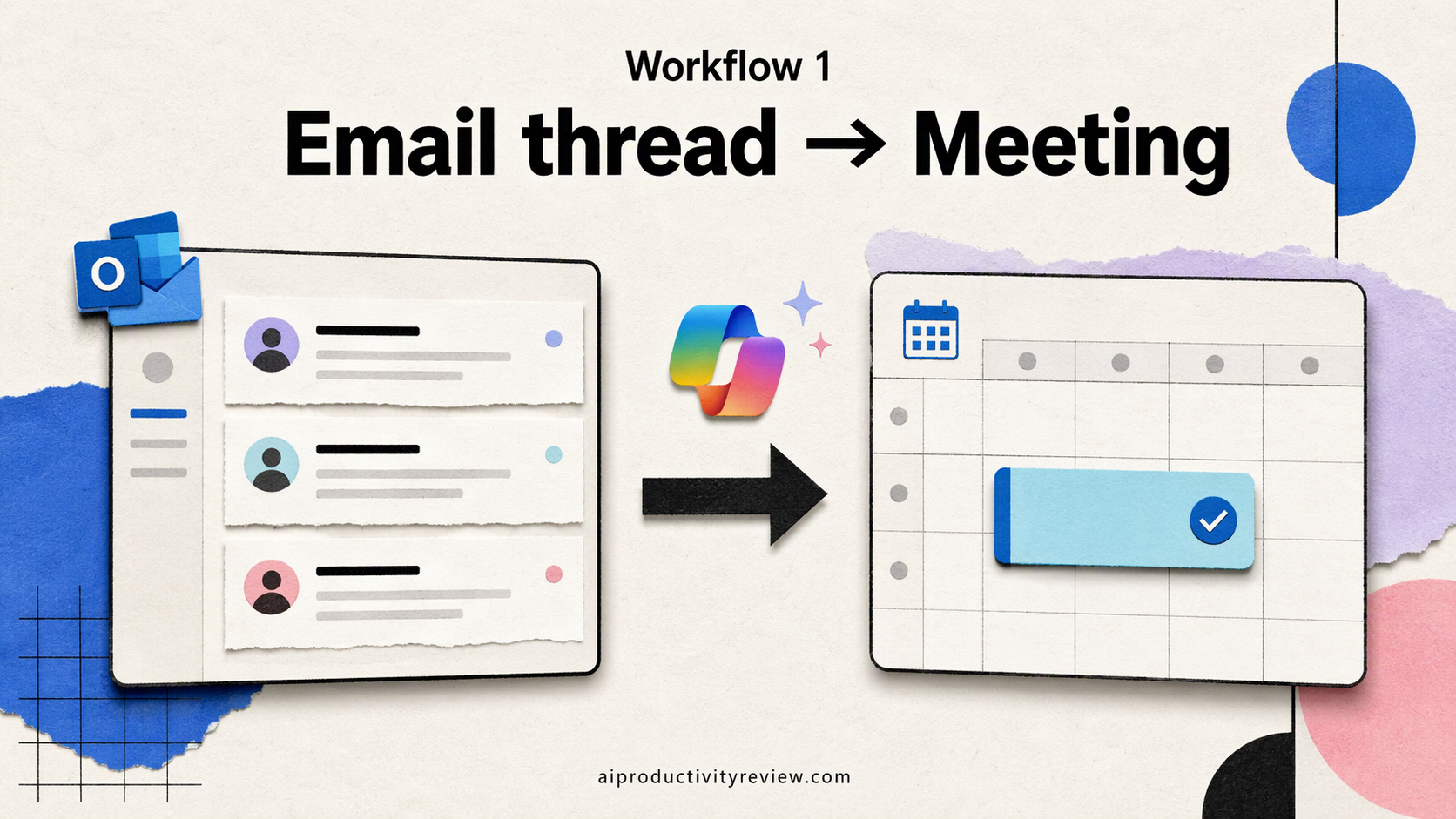
In new Outlook:
- Open the email thread.
- Click Schedule with Copilot in the toolbar (it may sit under the Copilot menu).
- Copilot drafts the invite: a title, an agenda based on the thread, and everyone on the thread as attendees. The thread is attached.
- Check the time it picked. Fix the attendee list. Copilot invites everyone on the thread, including the person who was CC'd as a courtesy in 2024.
- Send.
In classic Outlook: Press Alt+C from the thread. Classic can also check availability and book a room, per Microsoft's screen-reader tutorial.
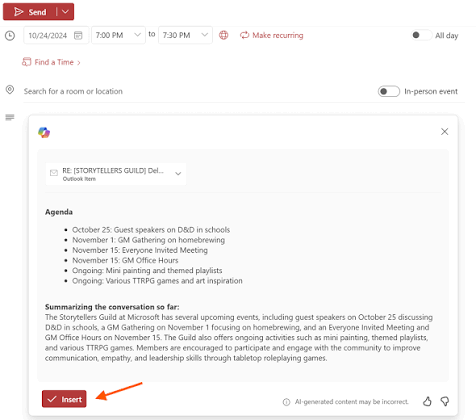
Gotcha: if the thread never discusses next steps, Copilot leaves the agenda empty. It's not a mind reader. Yet.
Workflow 2: Find a time without the email ping-pong
Open Copilot chat in Outlook (or on your phone) and just ask. Microsoft says chat scheduling has been available in English across Microsoft 365 Copilot and Outlook since March 2026. It shows each proposed slot on your calendar and can book a room.
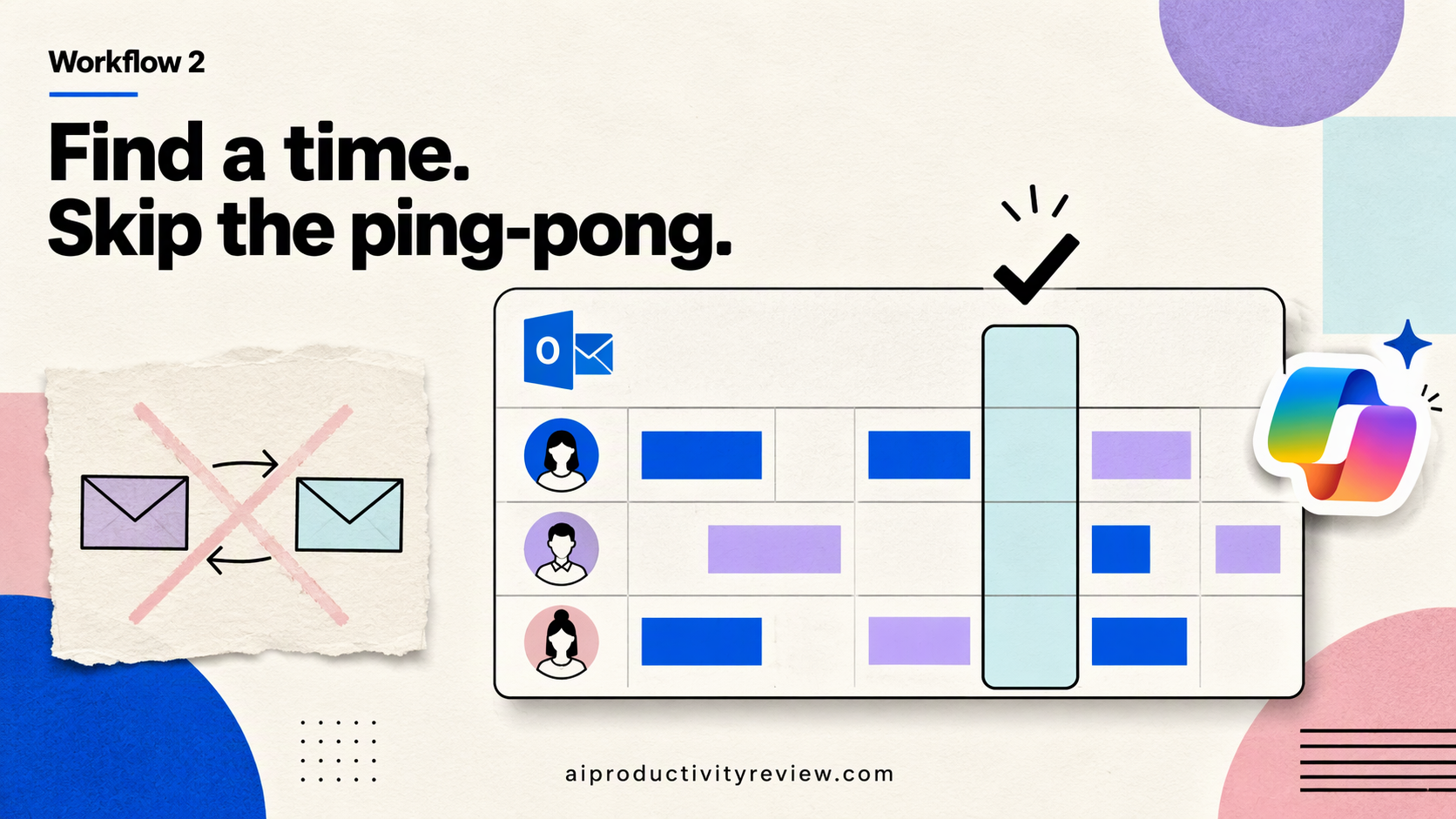
Prompts to use:
- "Schedule a 30-minute Teams meeting with Barbara about the Q1 sales report."
- "Find 45 minutes with Priya and Marco next week, mornings only."
- "When is my next 1:1 with my manager?"
- "Book a room for 6 people Thursday afternoon for the design review."
- "Add two hours of focus time tomorrow before noon."
Tips that make it work better:
- Give a duration every time. Otherwise you get Copilot's guess.
- Say the constraint out loud. "Not Friday," "after 10 am their time," "no lunch hour."
- Name people the way Outlook knows them. Typing "/" plus a name in chat helps it grab the right person.
Workflow 3: Let Copilot write the agenda
An invite with no agenda is how a 30-minute meeting becomes a 60-minute meeting.
- Create a new event, or open one you're organizing.
- Click into the description and type / (or press Alt+I).
- Choose Auto draft an agenda.
- Keep it, discard it, or ask for shorter, longer or a different tone.
My rule: always cut the draft by a third. AI agendas love a "wrap-up and next steps" item that never gets reached.
Workflow 4: Walk into meetings already prepped
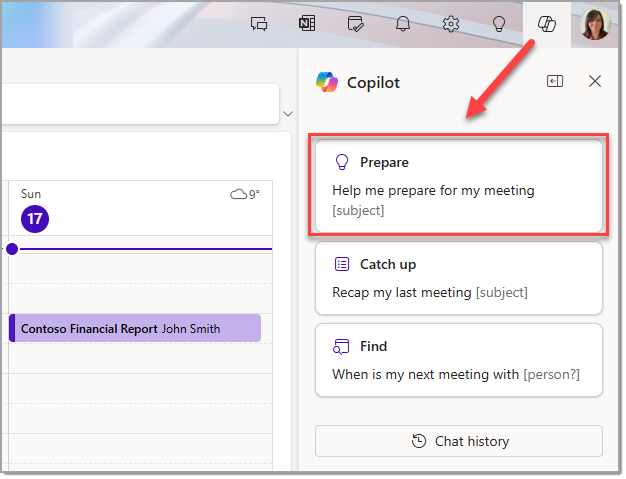
Open any event on your calendar. If Copilot has enough context, a Prepare summary appears at the top: an overview, related tasks, actions, a recap of past meetings, and topics.
What makes it useful:
- It pulls related emails and files you'd otherwise hunt for five minutes before the call.
- It works on the web, new Outlook, Teams, Mac and mobile.
What makes it useless:
- Meetings with little related content get a generic summary.
- Your admin must turn on Meeting Insights first.
- Microsoft's own pages disagree on when the full summary appears. One says 1:1s or meetings with related content; the screen-reader version says at least three participants. Test it on your own calendar.
A 3-minute pre-meeting habit: open the event, read the Prepare card, and write one sentence in the event notes saying what you want to leave the meeting with. That sentence does more than the summary.
Workflow 5: Let Copilot move clashing events
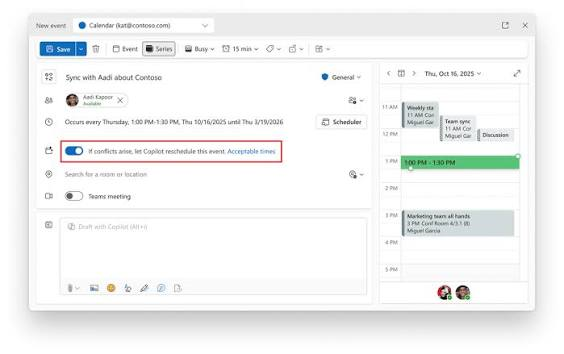
- Open a personal appointment or a 1:1 you own.
- Turn on "If conflicts arise, let Copilot reschedule this event."
- Optionally set the days and times it's allowed to move to.
- Save.
Now, when something new lands on top of it, Copilot moves it for you.
The fine print, straight from Microsoft's support page:
- Only personal events and 1:1s of 5 hours or less. No all-day events.
- Only Busy or Out of office events trigger it. Tentative ones don't.
- It gives up after 5 attempts.
- Attendees get a normal update. They won't know a robot moved them. (Your secret is safe.)
- New Outlook for Windows, web and Teams calendar only.
Best use: your own time blocks. Gym, deep work, "write the report." Turn it on and let meetings push them around instead of deleting them. If time blocking is your thing, here's how I time block with AI.
Workflow 6: Set Calendar Instructions once, forget forever
Calendar Instructions are plain-English rules that Copilot follows for incoming invites. They run in the cloud, so they work even when Outlook is closed.
Where: Settings → Copilot → Calendar instructions. Or just ask Copilot to add one.
Microsoft's example rules, which are good starting points:
- "Always accept meetings from my manager if my calendar is free."
- "Automatically delete canceled meetings."
- "Follow meetings with the subject Office Hours."
- "Always decline meetings that conflict with existing meetings."
Start with two rules, not ten. Run them for a week. Then add more. Auto-declining everything that clashes sounds great until you decline your CEO. 😬
What about the "agentic" Copilot?
In April 2026, Microsoft started letting Copilot act on your calendar more independently for Frontier (early-access) users: answering invites, rescheduling clashes, rebooking rooms, blocking focus time, and following large meetings outside your hours.
As of 9 November 2026, I found no general-availability date. If your company isn't in Frontier, you won't see it. Watch the Microsoft 365 Copilot release notes for the rollout. Recent entries added things like finding meetings by topic (September 2026).
When Copilot isn't the right tool
Be honest here. It's fine.
- You're on a personal Outlook.com account. Microsoft documents email summaries for consumers, not calendar scheduling. A third-party assistant will do more.
- Your company won't pay $21–$30 a seat. Free Copilot Chat handles simple scheduling, but no agendas from your work data.
- You want your whole day planned, not only your meetings. Copilot schedules meetings. It doesn't decide which of your 40 tasks deserve today's open slots.
For that last one, look at assistants that sit across tasks and calendar. Saner.AI connects Outlook Calendar and Outlook Mail, pulls tasks from email, and sends a daily plan. It won't draft Teams agendas or book rooms, so treat it as a complement to Copilot.
For other options, see my AI calendar assistants roundup and AI scheduling assistant guide.
On Google Workspace instead? Read how to use Gemini in Google Calendar.
Your 15-minute setup for this week

- Minute 0–2: Confirm you see Copilot in new Outlook.
- Minute 2–5: Add two Calendar Instructions (auto-delete cancelled, accept your manager's invites when free).
- Minute 5–8: Turn on auto-reschedule for your recurring focus blocks.
- Minute 8–12: Pick tomorrow's meeting with the longest email thread and use Schedule with Copilot, or open it and read the Prepare card.
- Minute 12–15: Ask Copilot chat: "What meetings this week could be an email?" Then be brave.
That's it. Next Monday, check what Copilot moved, what it got wrong, and adjust one rule. And if the inbox is the bigger fire, start with how to use AI to manage email.
FAQ
Can Copilot schedule meetings in Outlook?
Yes. Use Schedule with Copilot on an email thread to turn it into an invite, or ask Copilot chat something like "Schedule a 30-minute Teams meeting with Barbara about the Q1 sales report." It checks attendees' calendars, suggests times and can book a room.
Do I need a paid licence for Copilot in the Outlook calendar?
For basic calendar questions and scheduling, free Copilot Chat with an eligible work account is enough. Agendas and meeting prep built from your work data need the Microsoft 365 Copilot add-on ($30 per user per month, billed yearly) or Copilot Business ($21 per user per month).
Can Copilot reschedule my meetings automatically?
Yes, for personal appointments and 1:1s of 5 hours or less. Turn on "If conflicts arise, let Copilot reschedule this event" in the event. It works in new Outlook for Windows, Outlook on the web and the Teams calendar, and gives up after 5 attempts.
Does Copilot work in classic Outlook?
Partly. Classic Outlook has Schedule with Copilot (Alt+C), chat scheduling and meeting prep. Auto-reschedule, Calendar Instructions and the agentic features are new Outlook and web only.
Does Copilot work with a personal Outlook.com calendar?
Copilot comes with Microsoft 365 Personal and Family for Outlook.com, Hotmail, Live and MSN addresses. Microsoft only documents email features for those accounts, so don't count on calendar scheduling.
Why don't I see "Prepare for this meeting"?
Your admin may not have turned on Meeting Insights, or the meeting has too little related content. Microsoft's pages also give different rules for when the full summary appears, so try it on a meeting with a long email history.