I tested the 4 best AI for Information Overload

💡 Quick answer: If the real bottleneck is that all your captured insights never become a workable plan, Saner.ai pulls everything together into one proactive schedule. Notebook LM summarizes and answers questions strictly from the sources you give it. Overwhelmed by meetings? Otter.ai automatically transcribes conversations and extracts key takeaways. Can't stop compulsively checking your phone? One Sec adds a mindful pause before apps open to break the scrolling loop.
How I Tested These Tools?
I didn't just skim four landing pages and call it a day, that's how you end up recommending an app that looks great in a demo video and falls apart the second your real inbox hits it.
- Did it solve the specific problem, not overload in general? Each tool here earns its spot for the one job it does better than a generalist tool would.
- Does the free tier actually work, or is it a 3-day tease? I checked real usage limits
- Would I actually keep using it on a bad week, not just a calm one? The real test of any of these tools isn't how they perform when you're already on top of things.
1. NotebookLM (Gemini Notebook): best for document and research overload
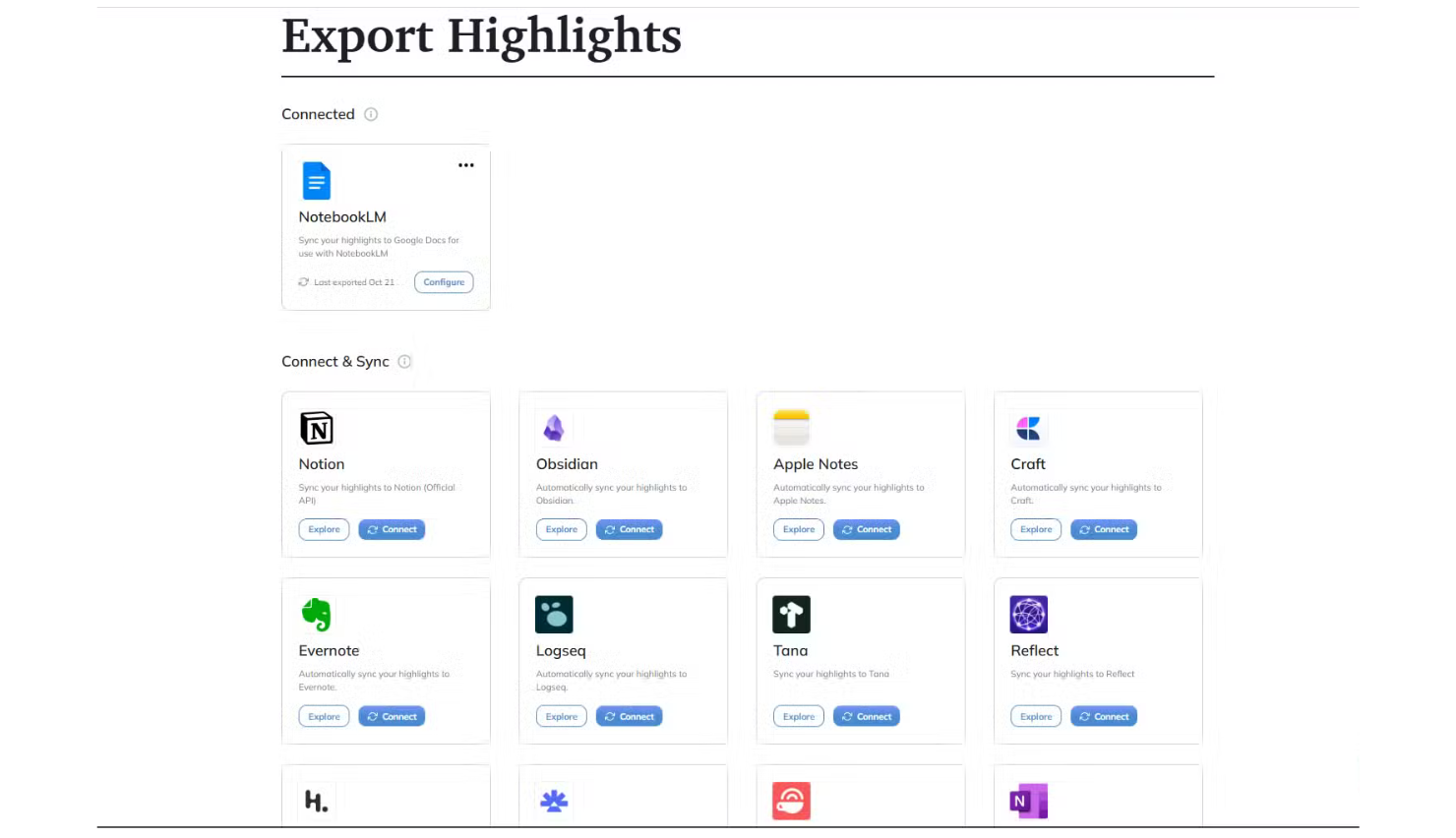
If your overload is "I have 40 PDFs, three reports, and a pile of articles I'm supposed to have an opinion on by Thursday," this is the tool. The core idea is: upload your sources, and the AI answers questions, summarizes, and generates study guides or audio overviews using only what you gave it, which keeps it from inventing facts that aren't in your material.
- Price: Free with any Google account (100 notebooks, 50 sources per notebook, up to 500,000 words per source, usage that refreshes every few hours). Paid tiers bundled into Google AI Plus ($4.99/month), Pro ($19.99/month), and Ultra ($99.99+/month) mainly raise the daily limits
- Best for: Synthesizing a large pile of reading material without reading every word of it cover to cover
- Trade-off: It's only as good as what you feed it, and it won't go find additional context on its own unless you explicitly ask it to research further
What it does best:
- Grounded, reliable research: Answers questions strictly using the sources I upload (PDFs, research papers, Docs, and YouTube videos), making its outputs far more accurate and trustworthy than general AI models.
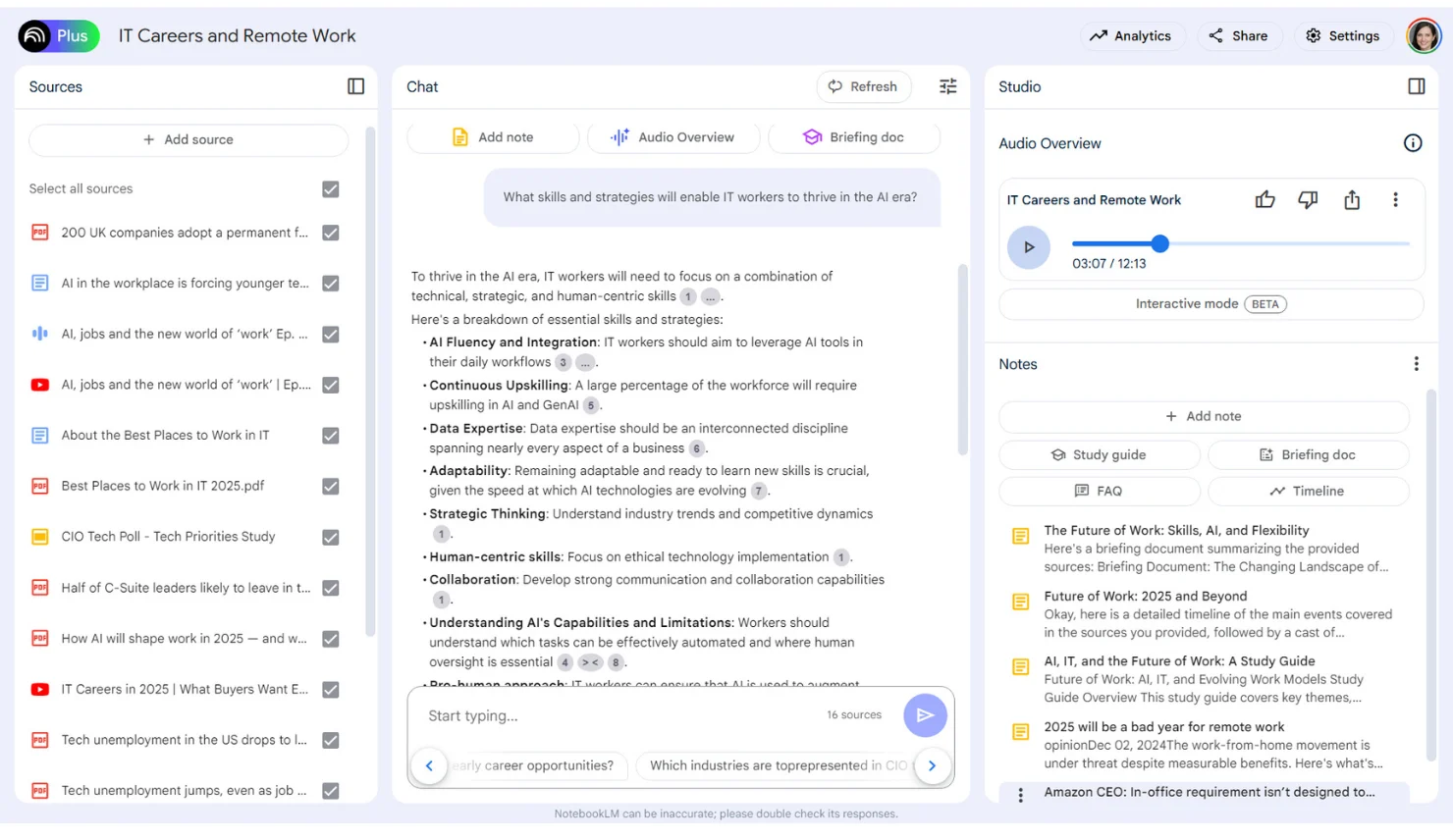
- Exact citations & source tracking: Links every answer directly back to the exact passage in my source material, so I can verify facts and quotes instantly
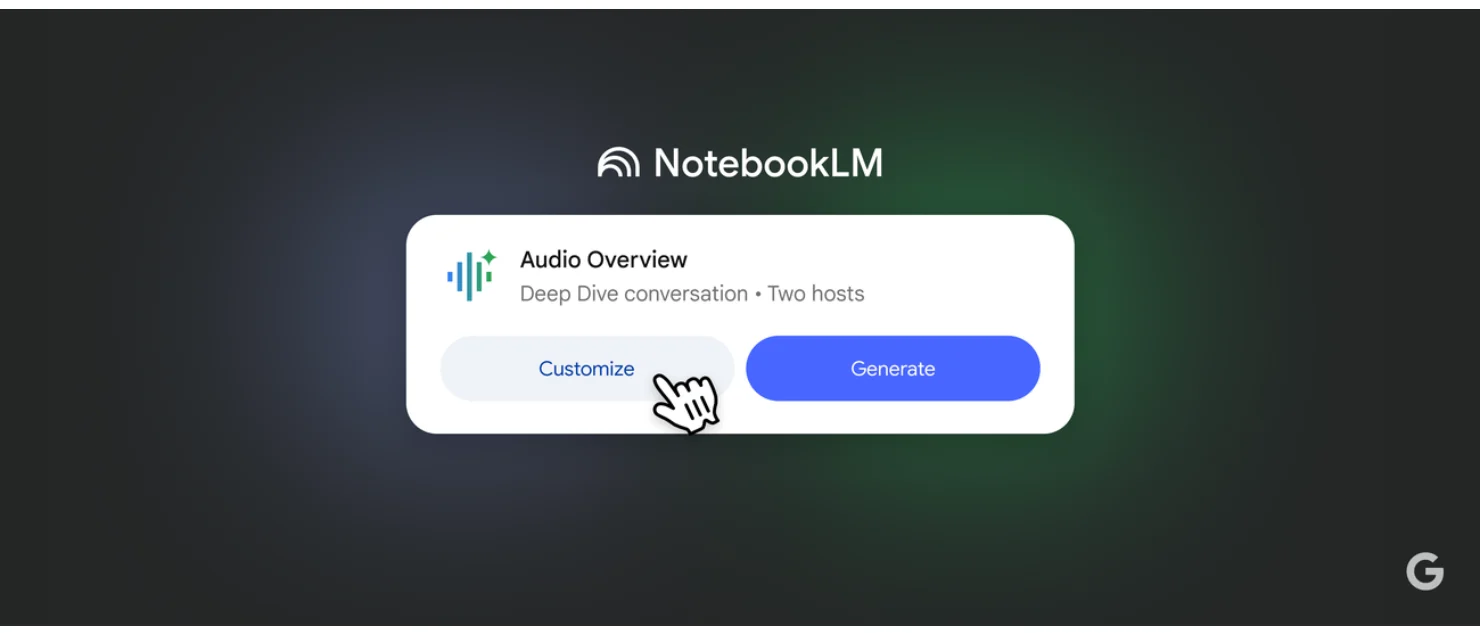
- Engaging Audio Overviews: Turns complex source documents into two-host, conversational audio summaries (like a custom podcast) to help me absorb dense topics on the go
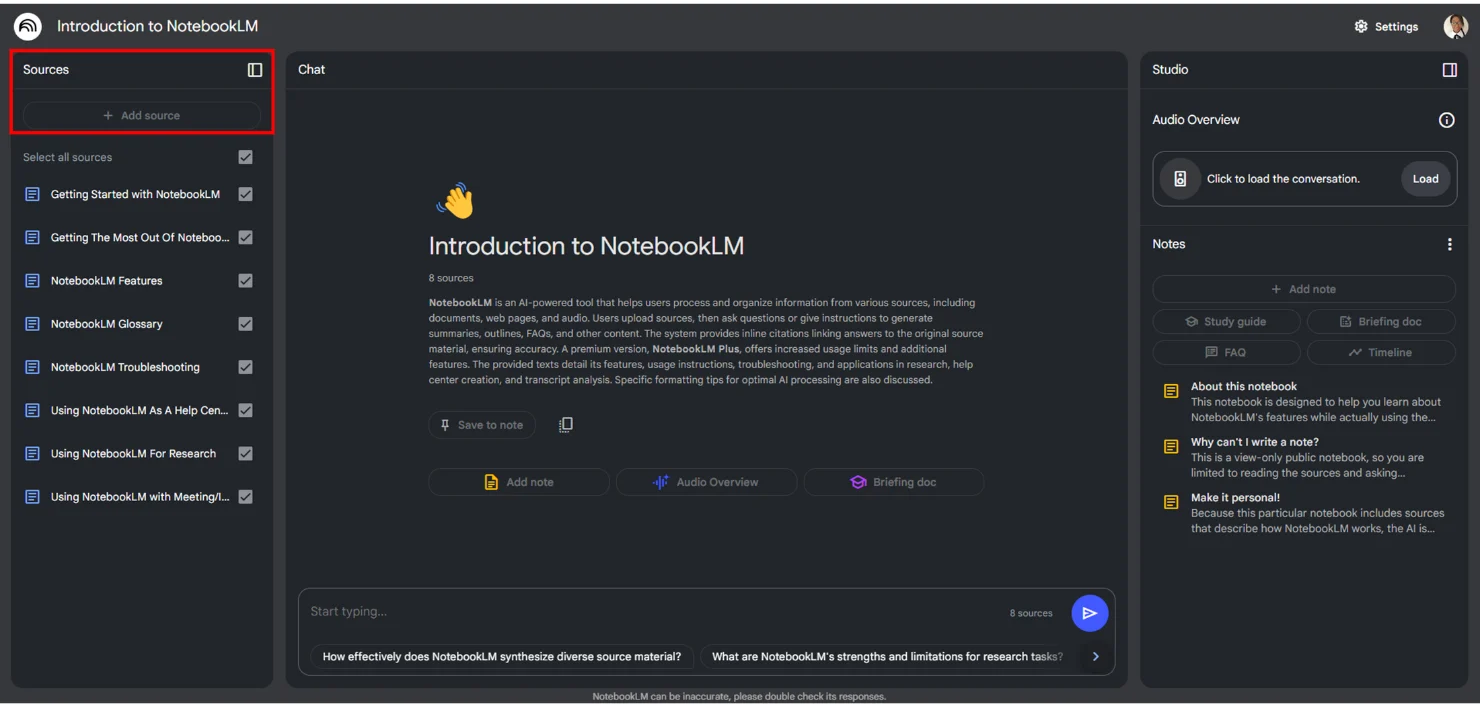
- Clean, clutter-free interface: Simple to navigate with near-zero learning curve, allowing to organize notes, brainstorm, and manage simple to-dos without distraction.
- Native Google Workspace integration: Seamlessly pulls documents, spreadsheets, and slides directly from Google Drive without tedious copy-pasting
Where it falls short:
- Not built for complex project management: Lacks advanced workflow tracking, Gantt charts, dependencies, and complex task pipelines needed for big team projects
- Limited integration outside Google: Works smoothly with Google Docs and Drive, but lacks third-party connectors to external tools like Slack, Notion, Asana, or Jira
- Minimal layout customization: Offers rigid note formats and few options to customize databases, views, or dashboards to match tailored workflows
- Weak for large team collaboration: While you can share notebooks, it struggles with complex multi-user permissions, real-time team co-authoring, and enterprise delegation
- Hard limits on uploads & queries: File size ceilings, copy-protected document restrictions, and query limits can hinder heavy power users working with massive archives
2. Saner.ai: best for turning the flood into an actual plan
AI organize notes themselves
Here's the gap all four tools share, even the good ones: they each make one specific flood more manageable, but none of them connect the dots. A document gets summarized, an email gets found, a meeting gets transcribed, a notification gets paused, and you're still the one holding all four outputs and deciding what to actually do about any of it.
Saner.ai is built around that connecting step specifically, and it leans into three things:
- AI organization: Drop in messy notes, then it sorts, tags, and organize everything automatically.
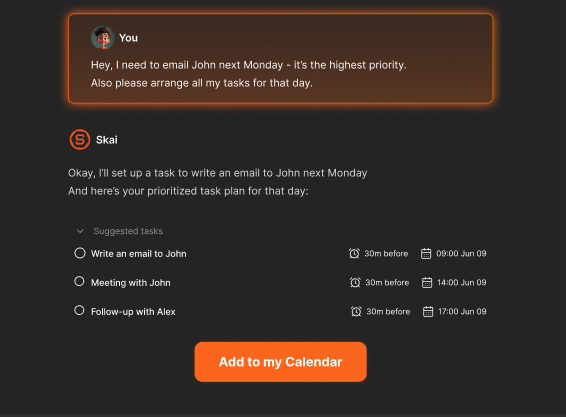
- Voice & quick thoughts to calendar: Speak, forward a messy email, or drop a quick thought; the AI grasps my intent, splits large jobs into bite-sized steps, and puts them directly onto calendar so they don't get lost in my notes.
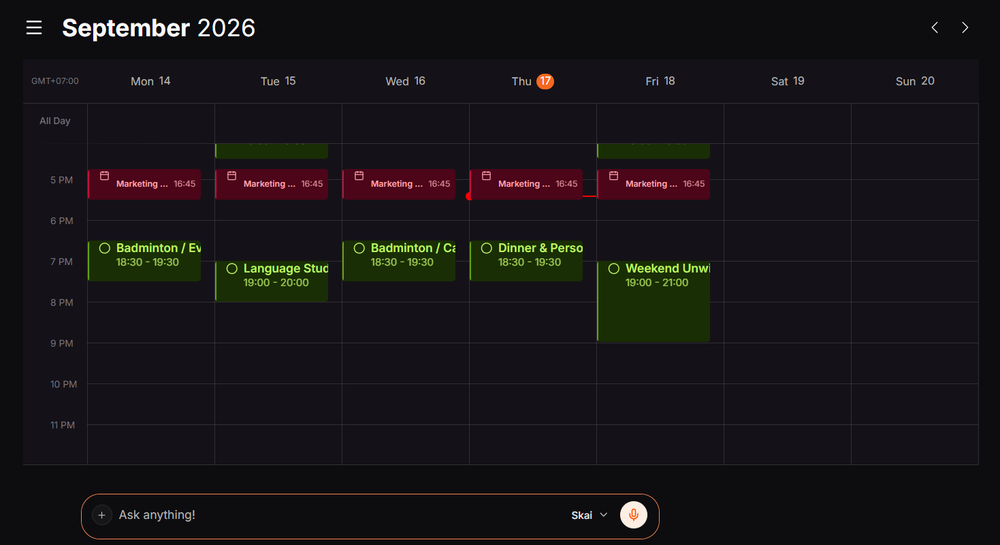
- Auto-scheduling: Finds what matters most and blocks out time on my schedule to get it done.
- Price: Free plan; paid tiers from $8/month (Starter) to $16/month (Standard)
- Best for: People who've already tried summarizing and transcribing tools and found the real problem is that the summaries themselves pile up as a sixth source of overload
- Trade-off: It won't transcribe a meeting, search years of email, or summarize a 40-page report the way the specialist tools above do, it's the layer that acts on what those tools produce, not a replacement for them
3. Otter.ai: best for meeting overload
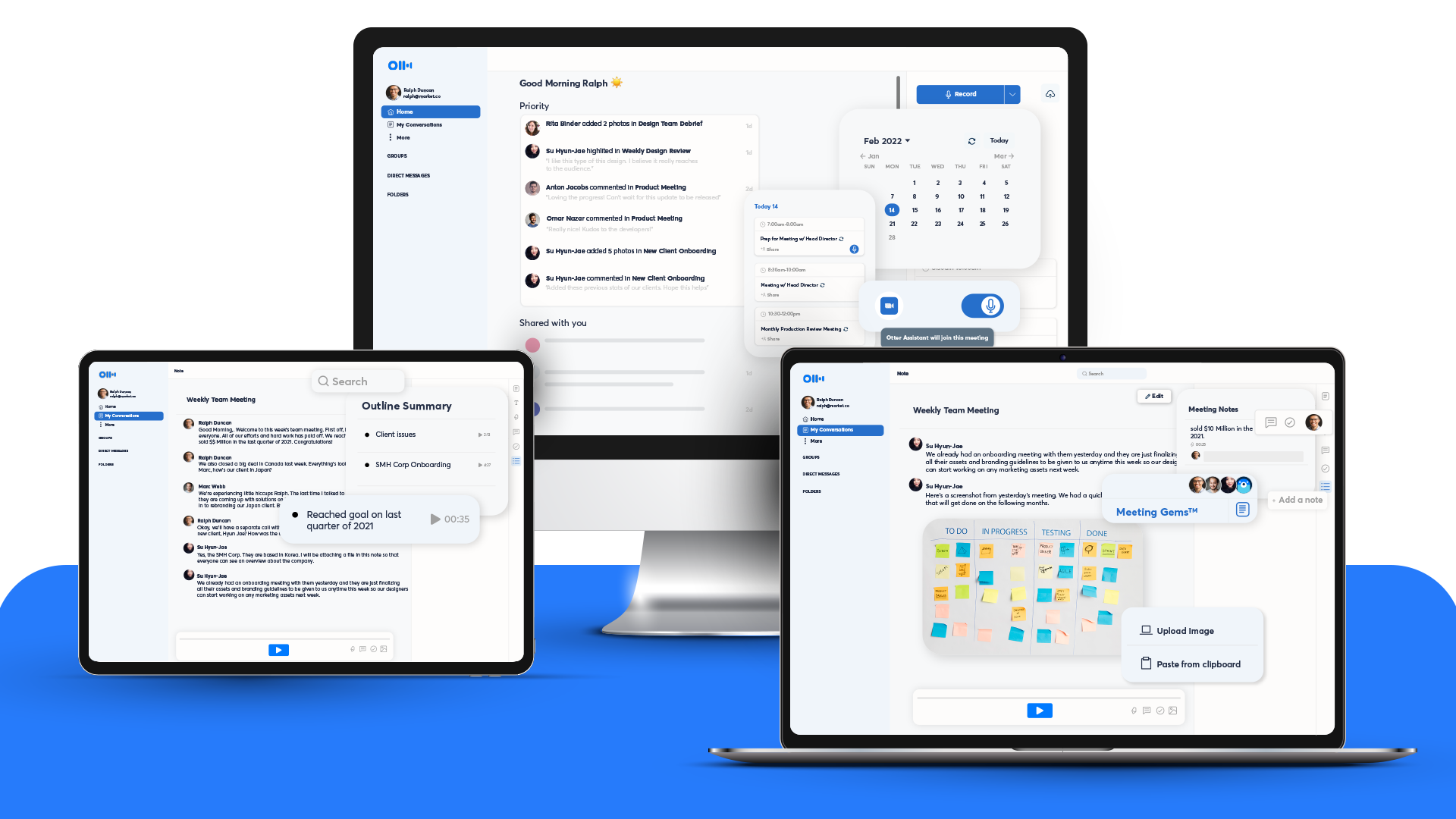
If your calendar is the flood, five, six, seven meetings a day, each generating decisions and action items you're supposed to remember, Otter transcribes and summarizes automatically, with real-time notes during the call itself rather than a recap you have to request afterward.
- Price: Free; Pro around $8.33–17/month depending on billing; Business around $20–30/user/month
- Best for: People whose meeting load alone, independent of email or documents, is the main source of overwhelm
- Trade-off: The free tier's 30-minute conversation cap gets hit fast by anyone with real back-to-back meetings, pushing most regular users to Pro within the first week or two
What it does best:
- Generous free plan: Offers 300 free transcription minutes per month (up to 30 minutes per meeting) without requiring credit card details.
- Autopilot meeting assistant (OtterPilot): Automatically joins Zoom, Google Meet, and Microsoft Teams calls to record audio, take real-time notes, capture presentation slides, and generate action item to-do lists
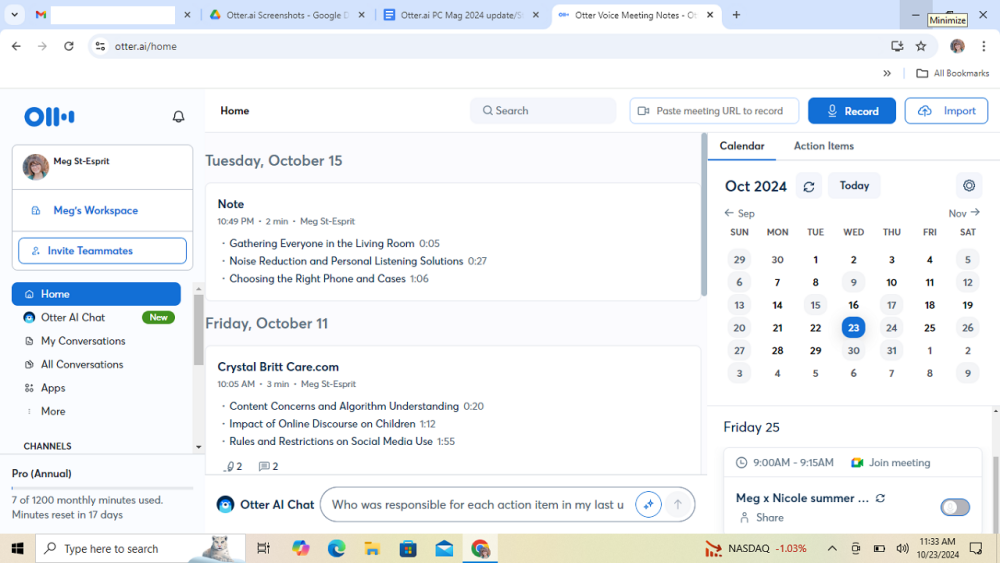
- Live transcription & interactive editing: Transcribes spoken conversations in real time, filters out verbal filler word, lets me search keywords, and allows multiple team members to highlight, comment, and edit text during the call.
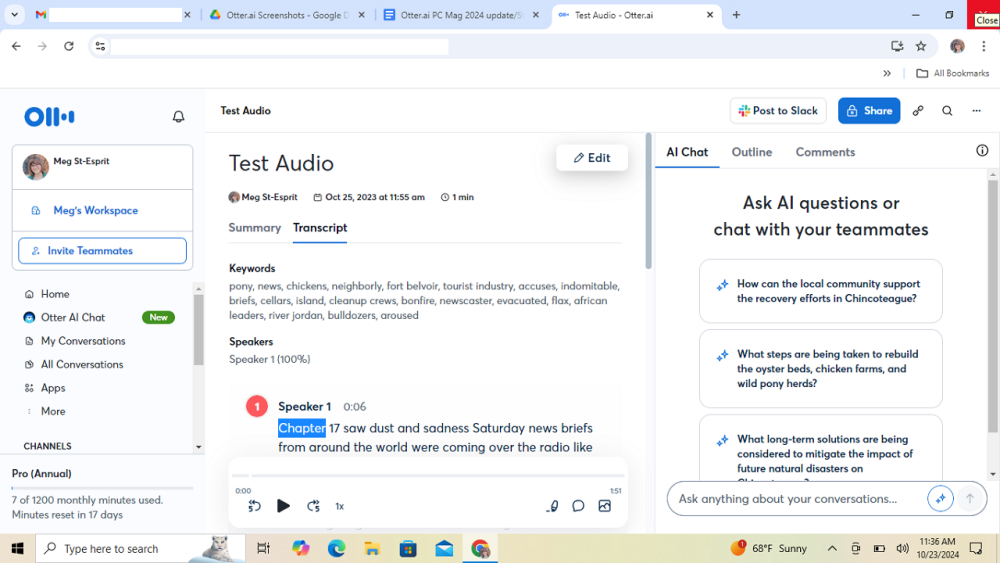
- Speaker separation & voice training: Can learn my specific voice profile to label correctly throughout transcripts and effectively distinguish between different speakers.
- Polished multi-platform apps: Features intuitive desktop, web, and mobile apps with clean folder organization, calendar syncing, and direct messaging channels.
Where it falls short:
- Harsh limits on prerecorded file uploads: Free accounts are strictly capped at only 3 audio/video file uploads for the lifetime of the account
- Struggles with punctuation and accents: Frequently misplaces periods, runs sentences together, and shows a noticeable drop in accuracy when transcribing strong accents, proper nouns, or uncommon place names.
- Occasional meeting dropouts: The bot can occasionally fail to record a scheduled call, forcing you to rely on a backup recording
- Limited direct language support: While it handles English, Spanish, and French, broader global languages require post-call translation through its chat assistant rather than native, on-the-fly transcription.
- No live human customer support: Customer service is restricted to help center documentation, ticket requests, and an automated chatbot with no direct phone or live chat agent.
4. One Sec: best for compulsive checking and notification overload
This is a different kind of overload, the kind that comes from your own phone, not from external information piling up. One Sec doesn't block apps outright; it adds a brief, deliberate pause, a breathing moment, before a distracting app opens, then asks whether you still want to go in.
- Price: Free for one app of your choice; Pro runs roughly $19.99–40/year depending on the current promotion, with a lifetime option around $99.99
- Best for: The specific compulsive "pick up phone, open app, not sure why" loop
- Trade-off: It's friction, not a hard block, by the company's own description. A determined user can tap through every time.
What it does best:
- Breaks the mindless scrolling loop: Forces a short pause and a deep-breathing exercise before an app opens, giving just enough friction to catch myself opening apps out of pure muscle memory.
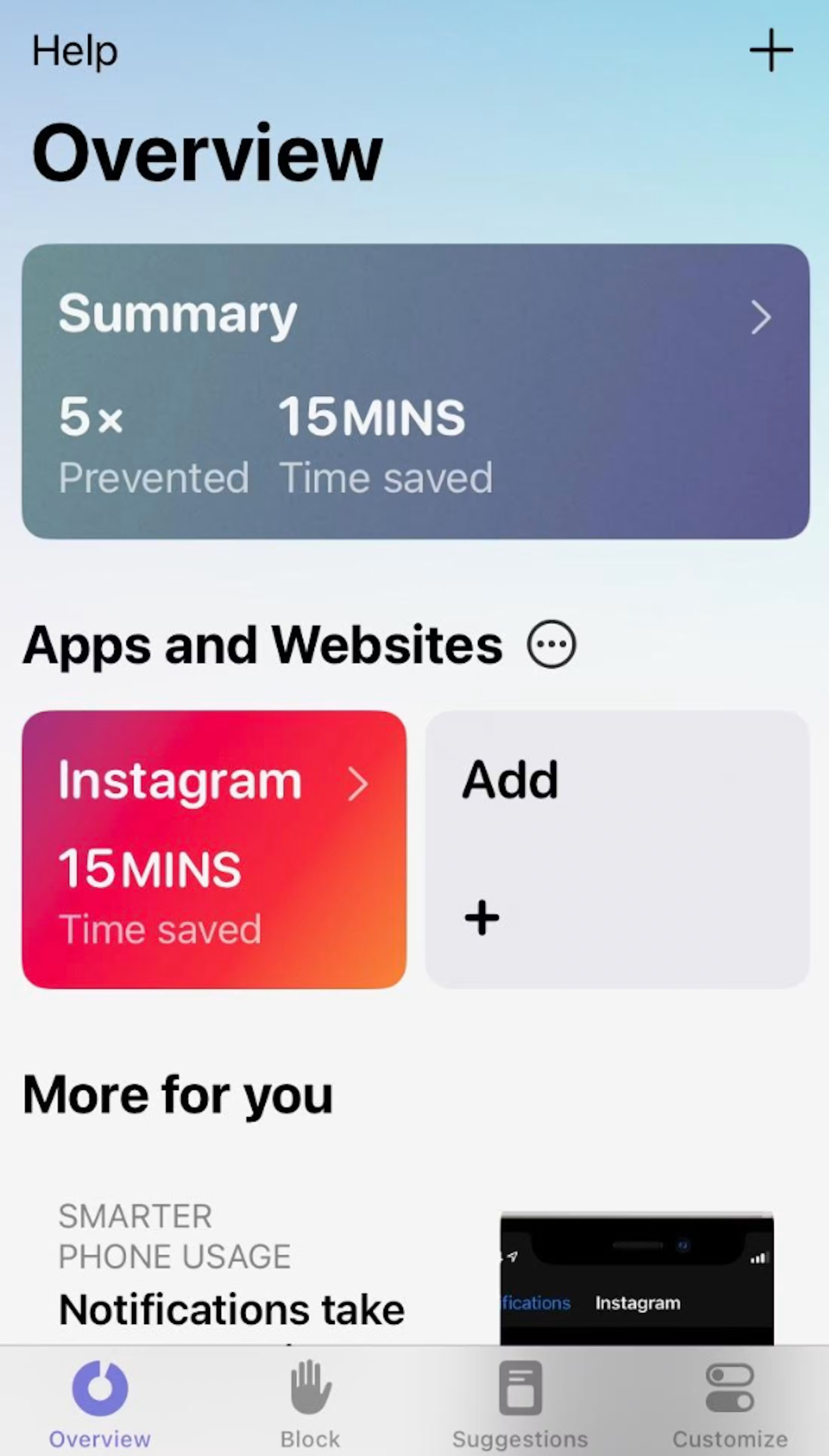
- Encourages self-reflection: Asks why I want to open the app (boredom, relaxing, or escaping) and shows how many times I've attempted to open it that day, turning unconscious habits into intentional choices.
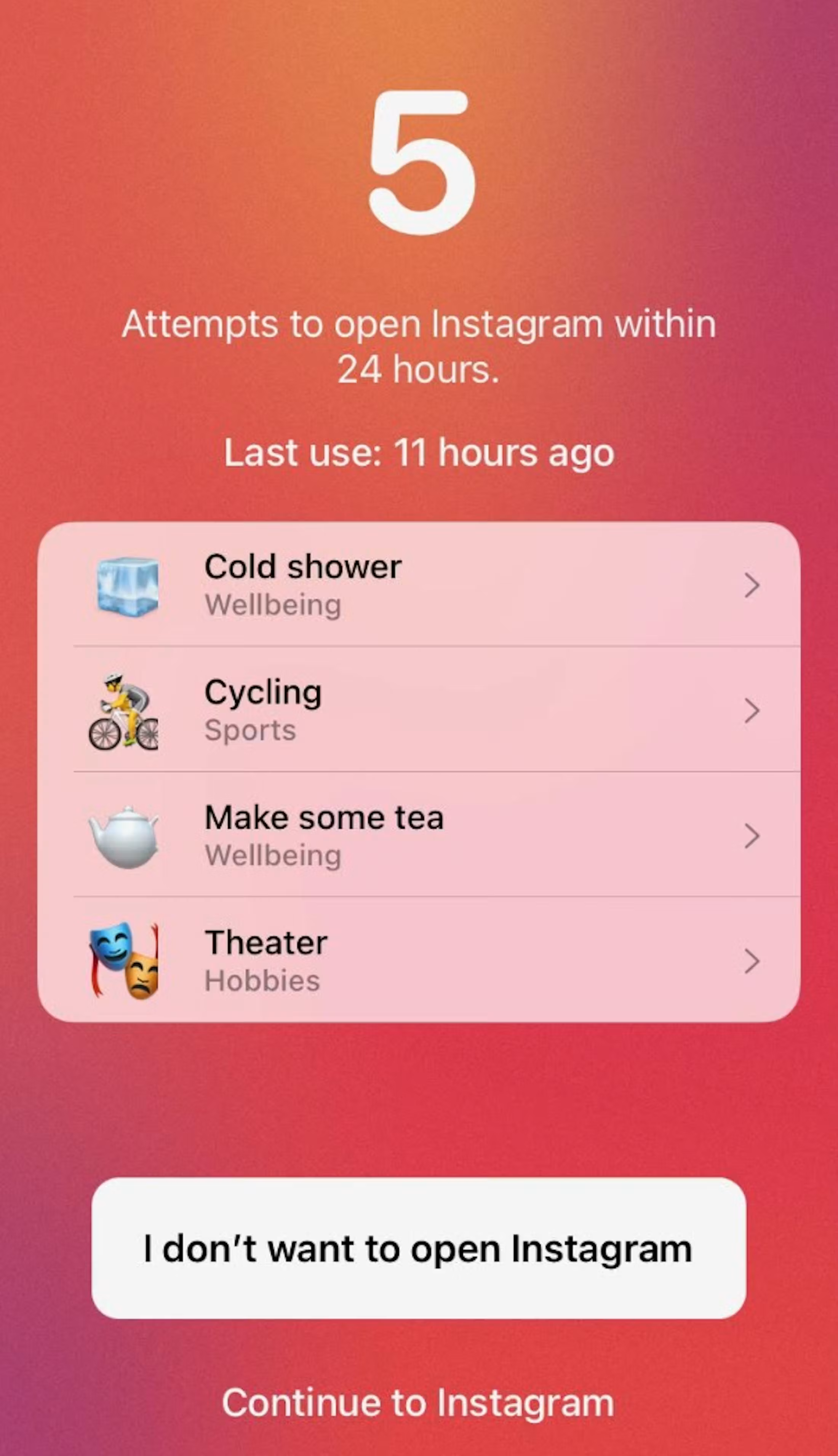
- Helpful habit redirection: Allows to customize interventions so the app suggests healthy, productive alternatives (like going for a walk or opening a learning app) instead of scrolling.
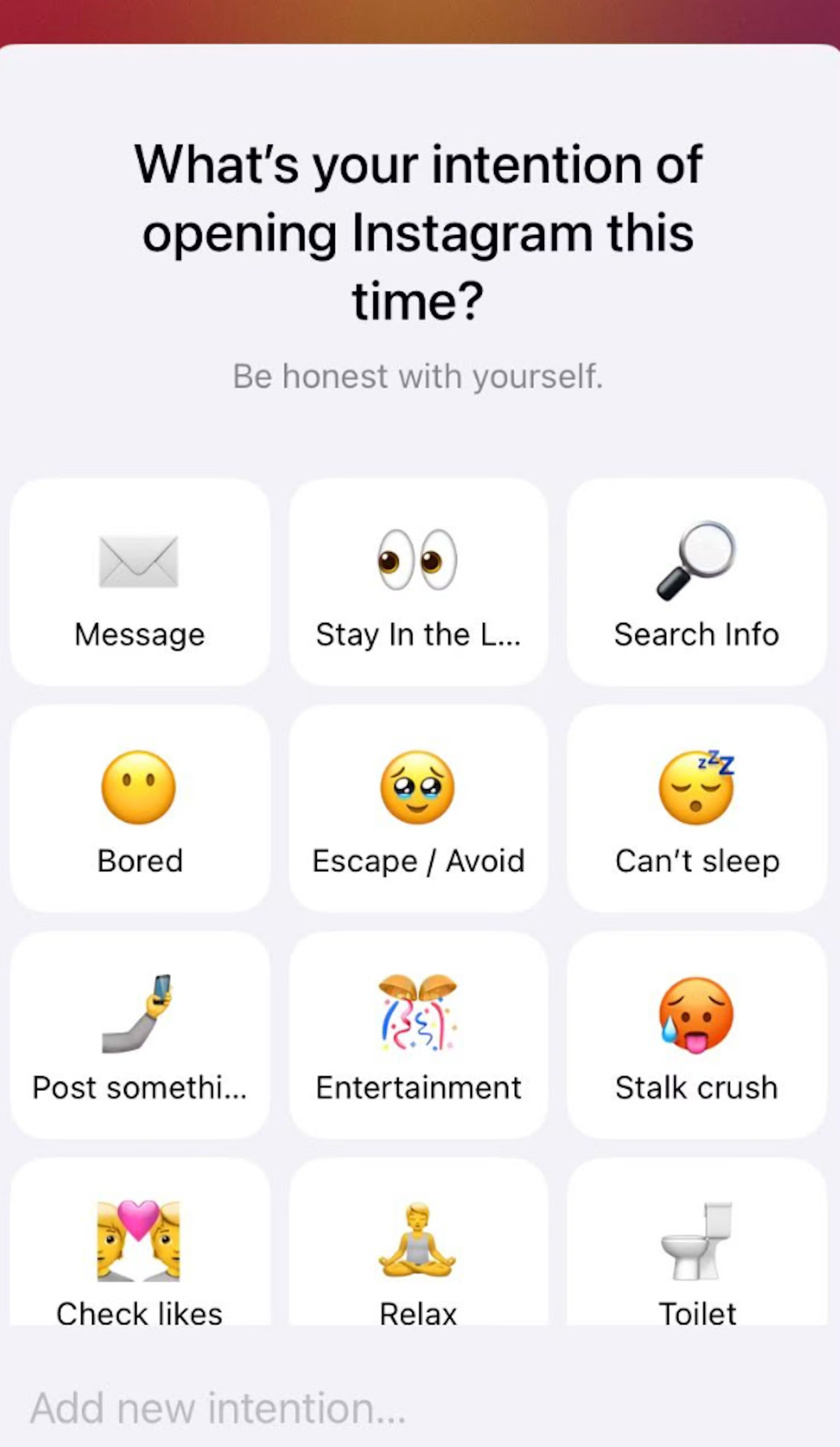
- Gentle, non-punishing approach: Doesn't rigidly lock out of my device; it allows to enter the app after the breath if I still want or need to use it.
- Cut-off limits: Can prompt again after a set amount of active screen time so I don't fall into hours of doom scrolling once I get past the initial pause.
Where it falls short:
- Tricky initial setup: Requires manually setting up automations through Apple's Shortcuts app on iOS, which feels clunky and unintuitive compared to one-click blockers.
- Friction can be bypassed: Because it relies on self-control rather than a hard lockout, it won't stop you if you are determined to scroll through the prompt anyway.
- Confronting usage stats: Showing the exact number of times you tried to open an app within 24 hours can feel discouraging or guilt-inducing rather than motivating.
- Estimated time saved: The recorded "time saved" metric is only a rough guess by the software, as it cannot know how long you actually intended to scroll.
Comparison between Notebook LM, Otter.ai, One Sec, Saner.ai
| Tool | Which flood it targets | Free plan | Starting price | Best for |
| NotebookLM (Gemini Notebook) | Documents and research | Yes | $4.99/month (Plus) | Synthesizing large reading piles |
| Otter.ai | Meetings | Yes (300 min/mo) | $8.33–17/month | Automatic transcription and summaries |
| One Sec | Compulsive checking | Yes (1 app) | ~$20–40/year | Interrupting the phone-pickup loop |
| Saner.ai | All of the above, turned into a plan | Yes | $8/month | Converting summaries into scheduled action |
Which AI for Information Overload should you actually start with?
- A pile of documents or reports is the problem: NotebookLM
- Meetings are eating your memory, not just your time: Otter.ai
- You keep picking up your phone without meaning to: One Sec
- You've tried the above and now have a pile of tidy summaries you still haven't acted on: Saner.ai
For a wider look at reducing overall workload rather than just information volume, see my AI for task management guide, and if the overload is specifically tied to attention or executive function, my best AI assistants for ADHD roundup covers tools built around that.

Four mistakes that make information overload worse
- Adding a summarization tool without removing a source. If you add NotebookLM or Otter.ai on top of your existing habit of also reading everything manually "just in case," you can't reduce information overload
- Treating every notification as equally urgent. Go through your phone's settings once and turn off everything that isn't a real, time-sensitive alert. This single change does more than any friction app, and it's free.
- Checking in short, frequent bursts instead of planned blocks. A 30-second check "just to see" is the least efficient way to process information, since you pay the attention-residue cost of switching every single time, with none of the benefit of actually finishing anything.
- Confusing "summarized" with "handled." A neatly summarized report that nobody acts on is still an open loop. The fix is a clear next step attached to it, which is why a tool that turns summaries into scheduled action matters

A practical way to triage your own overload
- Fix your biggest headache first: Don't try to fix everything at once. Pick the one thing bugging you most this week and start there.
- Check things in batches: Jumping between tasks kills your focus. Check your emails and alerts only two or three times a day instead of looking every time your phone buzzes.
- Read the summary first: For long files or messages, read the short AI summary. Only read the full text if you actually need more details.
- Give pause apps two weeks: Tools like One Sec take time to work. You need to use the pause for a couple of weeks to break the bad habit.
- Make summaries turn into real action: A summary you ignore is still just clutter. Turn at least one summary every day into a real to-do on your calendar.
FAQ
What is the best AI for information overload overall? NotebookLM suits document overload, Otter.ai suits meetings, One Sec suits compulsive checking, and Saner.ai suits turning the resulting summaries into an actual plan.
Can one app solve all five types of information overload? Not well. Tools built for document synthesis, email search, meeting transcription, and notification friction are each optimized for a specific flood, and a single tool trying to do all four tends to do each one shallowly.
Is any of these good for ADHD specifically? Saner.ai is built with ADHD and executive-dysfunction workflows in mind, including the gap between consuming or capturing information and actually acting on it.
>> See my best AI assistants for ADHD roundup for the full comparison, and talk to a professional if overload feels like more than everyday busyness.
Should I turn off notifications entirely, or just add friction to a few apps? Start with notifications, since it's free and takes ten minutes: disable alerts for anything that isn't time-sensitive. For the few apps you still open purely out memory, use a friction tool like One Sec to give yourself a second to pause before you dive in.
Related reading: AI for task management, best AI task manager, and best AI personal assistants. This article is for information only and isn't medical advice.