The 7 Best AI Assistants for Teachers (For All the Work That Isn't Teaching)

Teaching is the part of the job most teachers like. It's everything wrapped around it that eats the evening: the parent emails, the rubric you rewrite for the fourth time, the permission-slip reminder you forgot to send, the sub plan you type at 10:40 p.m. with one eye closed.

That's the work an AI assistant is good at. Nobody wants a robot teaching their class. This guide is about getting your Sunday back. 🍎
Quick answer: what's the best AI assistant for teachers?
For most U.S. K–12 teachers, the best AI assistant in 2026 is ChatGPT for Teachers, because it's free for verified K–12 educators, it remembers your grade level and curriculum, and it connects to Google Drive and Microsoft 365. If your school runs on Google Workspace, Gemini in Classroom is the easiest win since it's already inside the tool you use every day. For ready-made lesson and rubric generators, MagicSchool and Brisk are the fastest. For the personal side (tasks, reminders, notes and email that follow you home), add a personal AI assistant like Saner.ai.
Short version:
- Best overall (free): ChatGPT for Teachers
- Best if your school uses Google: Gemini in Classroom
- Best if your school uses Microsoft: Microsoft 365 Copilot with the Teach module
- Best one-click teacher tools: MagicSchool
- Best inside Google Docs and Chrome: Brisk Teaching
- Best free lesson-planning helper: Khanmigo for Teachers
- Best for your own to-dos, notes and reminders: Saner.ai
Why teachers need an AI assistant more than most jobs

- RAND's 2025 State of the American Teacher survey found that 46% of teachers said their job left them too tired for activities in their private life, compared with 13% of similar working adults. Fewer than half said their school or district was making an effort to help with work-life balance. (RAND, 2025)
- A Gallup and Walton Family Foundation survey of 2,232 U.S. public K–12 teachers (spring 2025) found that teachers who use AI at least weekly save an average of 5.9 hours per week, which adds up to about six weeks over a school year. (Walton Family Foundation, 2025)
- In that same survey, the most common uses were preparing to teach (37% of teachers used AI for it at least monthly), making worksheets (33%), modifying student materials (28%) and administrative work (28%). Grading was far lower at 16%. (full report, PDF)
What should an AI assistant for teachers actually do?
Bucket 1: classroom prep (the stuff with standards attached)
- Lesson plan first drafts
- Quizzes, exit tickets and question banks
- Rubrics
- Leveling a reading passage up or down
- Differentiated versions of the same worksheet
- Feedback comments on student writing (with you reviewing every one)
Bucket 2: life admin (the stuff that follows you home)
- Parent and family emails, including translations
- Reminders: field trip forms, IEP meetings, report-card deadlines
- Notes from staff meetings and PLCs, turned into actual to-dos
- Your own calendar, which somehow also includes your kid's dentist appointment
- That running "I'll do it later" list in your head.
The 7 best AI assistants for teachers
1. ChatGPT for Teachers: best overall for U.S. K–12 teachers
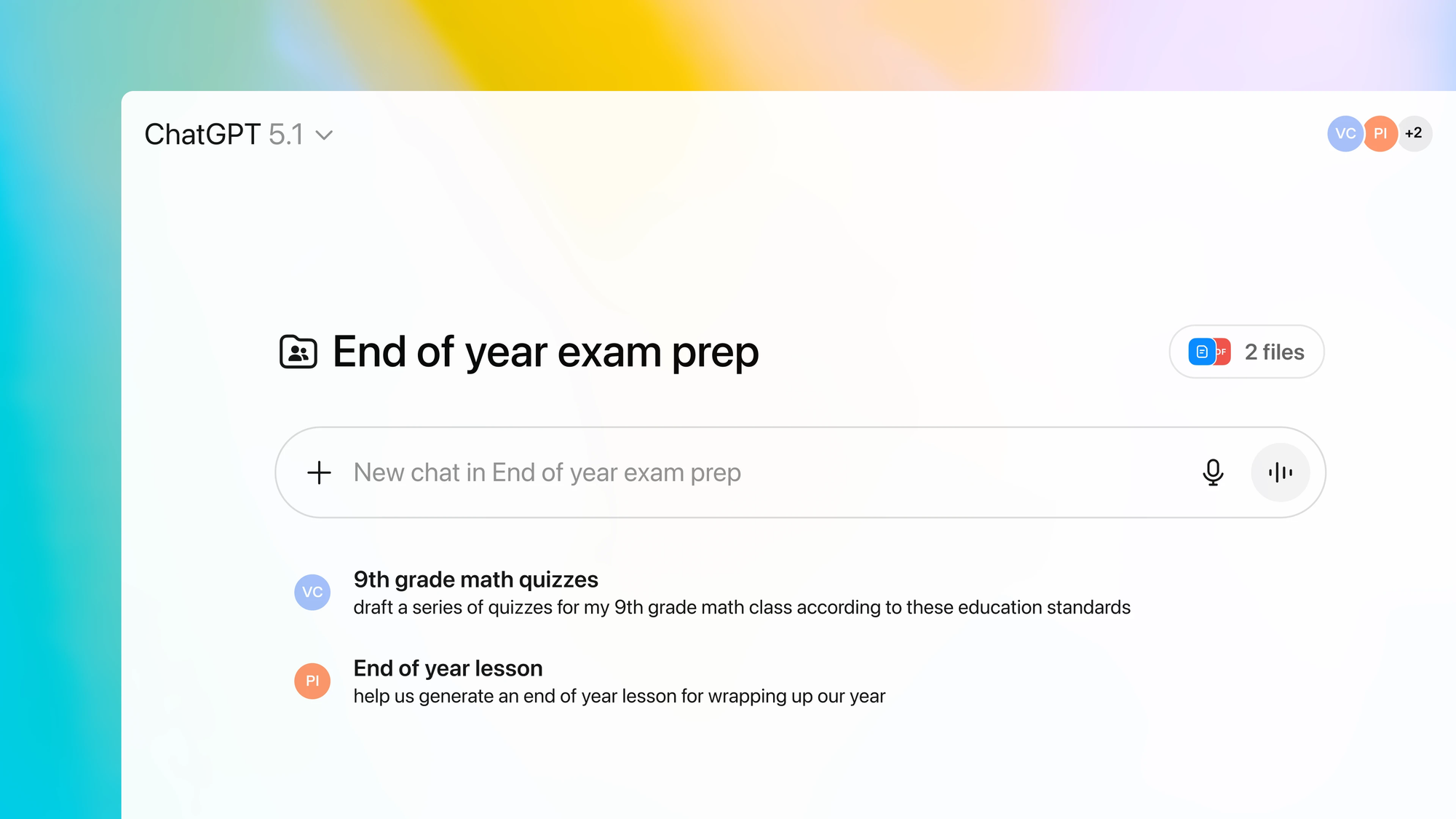
OpenAI launched ChatGPT for Teachers as a free workspace for verified U.S. K–12 educators (verification runs through SheerID). It's the most flexible option here because it's a general assistant with teacher-friendly settings on top.
What it does well:
- Memory for your context. You can have it remember your grade level, subject, curriculum and preferred format, so you stop typing "I teach 7th grade science" into every prompt.
- Privacy defaults. OpenAI says content in the teacher workspace isn't used to train models by default, and the workspace is built to support FERPA requirements.
- Collaboration. Shared projects and custom GPTs mean your grade-level team can build one "unit planner" and all use it.
Watch out for:
- The free period has an end date. OpenAI's page has shown both June 2027 and June 2028 in different places, so check the current terms before you build your whole year around it.
- It's U.S. K–12 only. Higher ed and international teachers need a regular ChatGPT plan.
Best for: teachers who want one assistant that can do lesson prep and draft the awkward email to a parent.
2. Gemini in Classroom: best if your school runs on Google
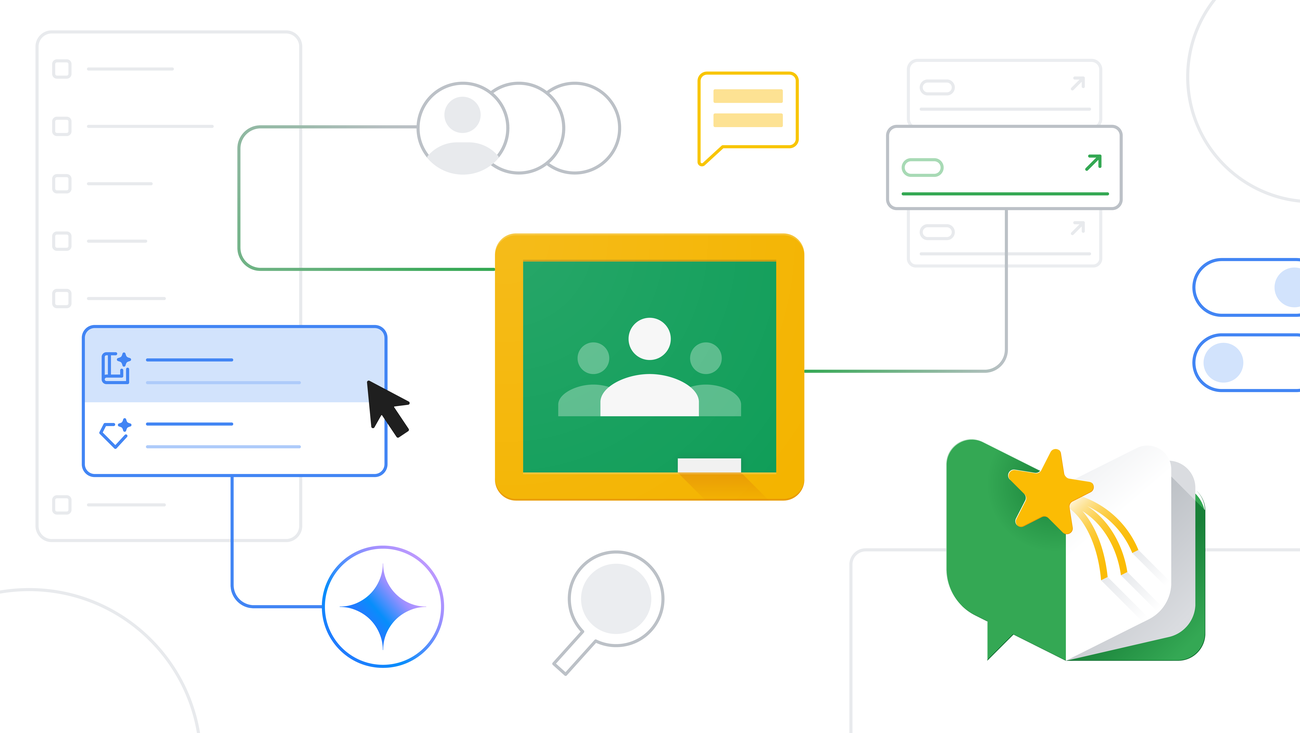
If you already live in Google Classroom, this is the path of least resistance. Google made Gemini in Classroom free for educators with Google Workspace for Education accounts, with a hub of 30+ AI tools inside Classroom.
What it does well:
- Drafts a lesson plan from a grade and topic, then lets you refine it with Gemini
- Builds a quiz from your lesson plan and exports it straight to Google Forms
- Generates rubrics and lesson hooks
- Teacher-led NotebookLM notebooks and Gems that students can use, grounded in your own class materials
Watch out for:
- It's built around Classroom. If your school uses Canvas or Schoology for everything, you'll get less out of it.
- Some features roll out by region and edition, so what you see may lag what Google announces.
Best for: Google schools, and teachers who want AI where their assignments already live.
3. Microsoft 365 Copilot (Teach module): best for Microsoft schools
Microsoft's answer is the Teach module inside the Microsoft 365 Copilot app. Teach and Copilot Chat are included even on the free A1 education plan, while full Copilot inside Word, PowerPoint, Outlook and Teams needs A5 or a paid add-on.
What it does well:
- Standards-aligned lesson plans (standards from 35+ countries)
- Adjusts reading level, tone and difficulty of materials
- Drafts quizzes and rubrics from learning objectives
- Works next to Teams for Education and OneNote, where a lot of Microsoft schools already run class
Watch out for:
- The free tier is Chat plus Teach. The "Copilot writes my Outlook replies" experience depends on what your district pays for.
- Licensing is confusing. Ask your IT team which plan you're on before you go looking for buttons that aren't there.
Best for: teachers in Microsoft districts who want lesson prep without leaving the Microsoft world.
4. MagicSchool: best one-click teacher tools
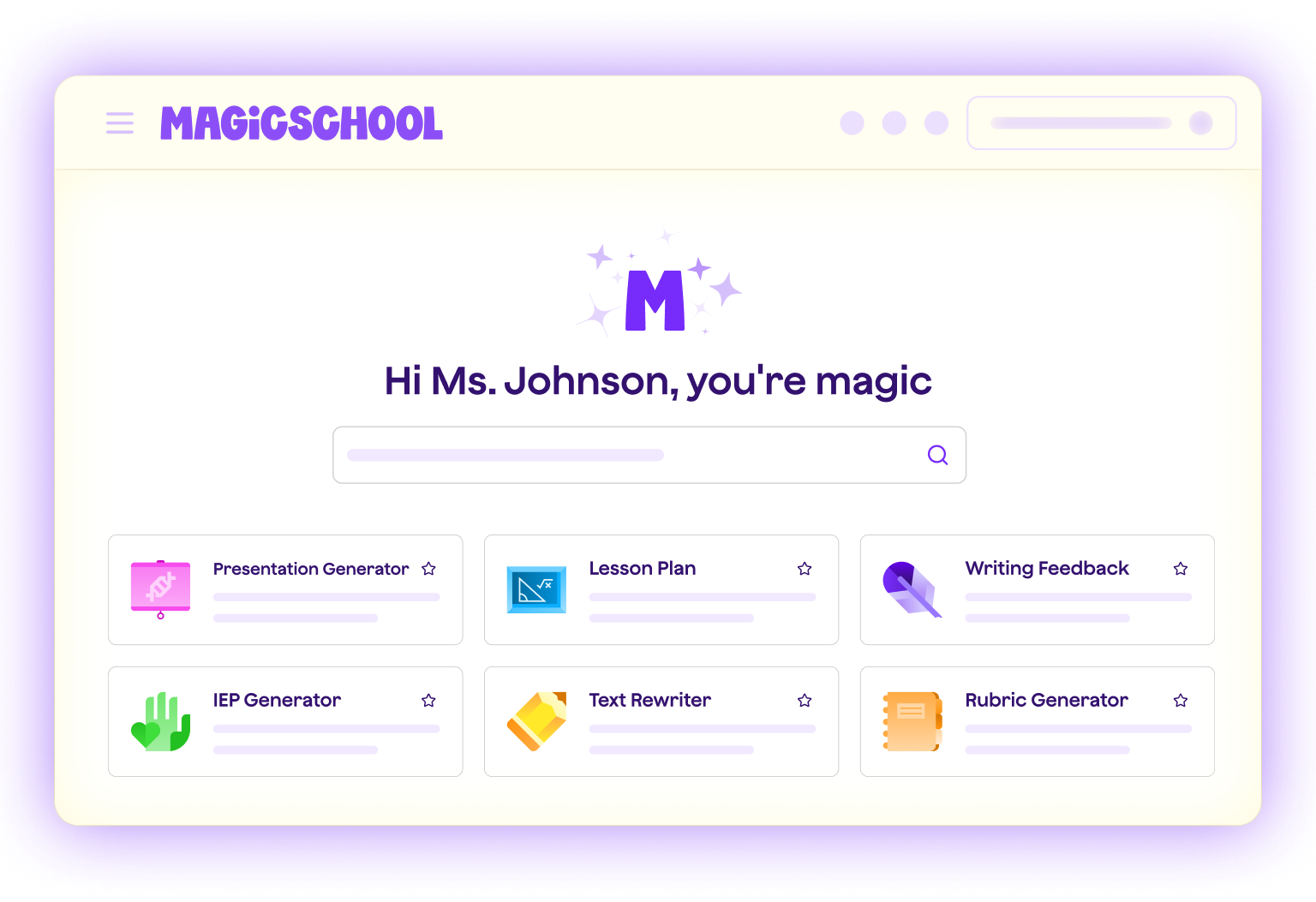
MagicSchool is the "vending machine" approach. Instead of one chat box, you get 80+ purpose-built teacher tools: lesson plans, rubrics, IEP and 504 drafting helpers, text leveling, YouTube question generators and more.
What it does well:
- Very low learning curve. Pick a tool, fill in four boxes, get a draft.
- Student-facing "Rooms" where you control which AI tools students can use and see their activity.
- Strong privacy posture: it states FERPA and COPPA compliance and holds a 95% privacy rating from Common Sense Media, per the same review.
Watch out for:
- Lots of tools means lots of clicking. It's a toolbox, not an assistant that knows your week.
- The free plan doesn't keep output history, so save anything you want to reuse.
Best for: teachers who don't want to write prompts at all.
5. Brisk Teaching: best inside Google Docs and Chrome
Brisk is a Chrome and Edge extension with a free-forever plan for educators that includes 20+ AI tools. Its trick is location: it sits on top of the Google Doc, article, slide deck or YouTube video you already have open.
What it does well:
- Turn an article you're reading into a quiz or a leveled version without copy-pasting
- Draft feedback on student writing right inside the Google Doc
- Make slides or a lesson from a video
Watch out for:
- It's a browser extension, so it lives on your school laptop. It won't help with the permission slip you remember at the grocery store.
- School and district plans add features the free plan doesn't have, so compare before you assume.
Best for: teachers who spend their prep period in Google Docs and want AI one click away.
6. Khanmigo for Teachers: best free lesson-planning helper
Khan Academy made Khanmigo for Teachers free for U.S. teachers through a partnership with Microsoft. It's narrower than ChatGPT, and that's partly the point.
What it does well:
- Lesson hooks, exit tickets, quiz questions and rubrics
- Student grouping suggestions
- Summarizing student work to spot who needs support
- Drafting multilingual family emails and class newsletters
Watch out for:
- Student access runs through school or district setups, and learners under 18 need parental consent.
- It's strongest when your content lines up with Khan Academy's library.
Best for: math and science teachers, and anyone who already uses Khan Academy with their class.
7. Saner.ai: best for the "teacher life admin" bucket
None of the six tools above will remind you on Thursday morning that you promised a parent a call back, or turn your scribbled staff-meeting notes into a to-do list. That's personal-assistant work, and it's where Saner.ai fits.
Saner is an AI personal assistant for notes, email, calendar and tasks. It pulls from Gmail, Google Calendar, Google Drive and Slack, turns emails and notes into tasks, and plans your day for you. It was originally built with ADHD brains in mind, which (let's be honest) describes a lot of teachers by the third week of October. 🙃
What it does well:
- Brain dump, sorted. Type or speak "call Maya's mom, order lab goggles, submit grades by Friday, dentist Tuesday" and it sorts that into tasks with dates. (More on this in our guide to brain dumping with AI.)
- Email to task. That parent email asking for a meeting becomes a task with a due date, not a starred message you'll find in December.
- Daily plan. It looks at your calendar and tasks and suggests what to do in the gaps, like your free period.
- Notes you can ask. "What did we decide about the 8th-grade science fair date?" works if you dumped your PLC notes in there.
Watch out for:
- It's not a lesson-plan generator. Pair it with one of the tools above.
Best for: teachers who are drowning in small promises more than in lesson prep.
Comparison table: AI assistants for teachers
| Tool | Free option | Best for | Lives in | Handles life admin? |
|---|---|---|---|---|
| ChatGPT for Teachers | Yes, for verified U.S. K–12 (time-limited) | All-round prep plus writing | Web, mobile apps | Partly (drafting) |
| Gemini in Classroom | Yes, with Workspace for Education | Google schools | Google Classroom, Gemini app | Partly |
| Microsoft Copilot (Teach) | Teach + Chat on A1 | Microsoft schools | Microsoft 365 Copilot app | Partly, more with paid plans |
| MagicSchool | Yes, with caps; Plus ~$100/yr | One-click teacher tools | Web | No |
| Brisk Teaching | Yes, free forever plan | Working inside Docs and Chrome | Browser extension | No |
| Khanmigo for Teachers | Yes, for U.S. teachers | Lesson planning, family emails | Web | A little |
| Saner.ai | Free plan available | Tasks, reminders, notes, email | Web, mobile, Chrome | Yes, that's the point |
Prices and free periods change. Check each tool's current page before you publish a recommendation to your whole staff.
How do I pick the right AI assistant as a teacher?

Answer these four questions in order. It takes about two minutes.
- What does my district already pay for or approve? Start there. An approved tool beats a "better" unapproved one, especially for anything touching student data.
- Where do I already work? Google Classroom → Gemini. Teams and OneNote → Copilot. Lots of Google Docs → Brisk. Everywhere → ChatGPT for Teachers.
- Is my pain prep or admin? Prep pain → MagicSchool, Khanmigo or ChatGPT. Admin pain → a personal assistant like Saner.ai, or ChatGPT used deliberately for emails.
- Do I want to write prompts? No → MagicSchool or Brisk. Yes → ChatGPT or Gemini.
Most teachers end up with two tools: one classroom tool from their school's ecosystem and one personal assistant for everything else. That's fine. Three is where it starts getting silly.
What are the rules for using AI safely as a teacher?
AI saves time right up until it creates a problem with a family or an administrator. Keep these guardrails:
- No student PII in unapproved tools. Names, IDs, grades, IEP details and behavior notes stay out unless your district has approved that specific tool. Use initials or "Student A."
- You grade. AI drafts. Use AI for first-pass feedback comments, then read and edit each one. A student can tell when feedback doesn't match their essay.
- Fact-check content. AI still makes up dates, quotes and sources. Anything going in front of students gets a human read.
- Check your school's AI policy. If there isn't one, ask. Remember, only 19% of teachers in the Gallup survey worked somewhere that had one.
- Be open with families. If AI helped translate a newsletter, a short note saying so builds trust.
Real examples: a teacher's week with an AI assistant
Here's what this can look like in practice. (These are illustrative examples of the workflow, not test results.)
Monday, 7:15 a.m.: Your assistant's morning summary shows two deadlines (progress reports Wednesday, field trip forms Friday) and one follow-up you forgot: a parent asked for a call last Thursday.
Monday, prep period: You open Gemini in Classroom, generate a quiz from this week's lesson plan, edit three questions that are too easy, and export it to Forms. Twelve minutes.
Tuesday, after the staff meeting: You dictate a messy voice note in the parking lot. By the time you're home, it's sorted into three tasks with dates.
Wednesday, 9 p.m.: Instead of writing 28 progress comments from scratch, you write bullet notes per student, have ChatGPT for Teachers turn each into two sentences in your voice, and edit. Still work. Less of it.
Friday, 3:30 p.m.: Friday review. Two leftovers move to Monday. You go home. Nothing is in your head. 🎉
Common mistakes teachers make with AI assistants

- Using five tools at once. Pick one classroom tool and one personal assistant. Tool-hopping costs more time than it saves.
- Skipping the profile. Without your grade, standards and format preferences, every output needs heavy editing.
- Trusting the first draft. Treat AI output like a student teacher's draft: useful, needs your eye.
- Only using AI for lesson plans. The Gallup data shows admin work is a common use, and admin is where a lot of the evening goes. Point AI at your inbox and to-do list too. Our guide on how to use AI to manage email is a good next read.
- Pasting student data into a consumer chatbot. Covered above, worth saying twice.
FAQ: AI assistants for teachers
What is the best free AI assistant for teachers?
For U.S. K–12 teachers, ChatGPT for Teachers is the strongest free option because it's a full assistant with memory and Google Drive and Microsoft 365 connectors. Gemini in Classroom is free with Google Workspace for Education, and Khanmigo for Teachers is free for U.S. teachers. MagicSchool and Brisk both have free plans with limits.
Can AI grade student work for teachers?
AI can draft feedback and suggest scores against a rubric, and tools like Brisk and MagicSchool will put comments in student Google Docs. It shouldn't make the final call. Read and edit every comment, and check your district's policy on AI in grading. In the 2025 Gallup survey, grading was one of the least common uses (16% of teachers at least monthly).
What's the difference between an AI teaching assistant and an AI personal assistant?
An AI teaching assistant (MagicSchool, Brisk, Gemini in Classroom) helps you make classroom materials. An AI personal assistant (like Saner.ai) manages your tasks, reminders, notes, calendar and email. Teachers usually need one of each. For a broader look at the second category, see our list of the best AI personal assistants.
Do teachers need a paid AI tool?
Most don't, at least to start. The free tiers above cover lesson drafts, quizzes, rubrics and emails. Pay when you hit a limit you actually feel, like MagicSchool's usage caps or needing Copilot inside Outlook.